Tango Class Files
Creating Your Own Tango Modular Code
Tango class files are reusable software components that you can incorporate in Tango application files. You can create and edit Tango class files using Tango Editor.
Tango supports the use of several types of resusable software components--called classes or "objects"--in Tango application files. Tango allows you to use the Tango class files that you create yourself, along with other objects that are available from third-party vendors.
This chapter assumes you are familiar with the basic concepts of using objects in Tango. The topics covered in this chapter include:
Once you have created your Tango class files, you can incorporate them in your Tango application files.
![[top]](arrow.gif) [back to top]
[back to top] What are Tango Class Files?
Tango class files are reusable software components that you can create and edit using Tango Editor.
Tango supports several types of reusable software components available on the market, such as JavaBeans. These software components are, strictly speaking, called classes. A class is a category of objects; it defines all the common properties of the different objects that belong to it. In industry, however, the term "object" is often used loosely. What is called an object may in fact be a class or a category of objects.
A Tango class file is a class or "object" you can use in Tango. You can use a Tango class file in Tango in the same way that you use a JavaBean. The main difference is that, with Tango class files, you can create and edit your own reusable software components using Tango Editor.
Because Tango class files are treated like JavaBeans in Tango, they are generally called "objects" in the User's Guide.
Example
To see how you might use a Tango class file, refer to "Example 1: Investment Scenarios". You are looking for an object to organize your report in the invest.taf application file. Suppose you cannot find a suitable object from a third-party vendor--you may want to create your own Tango class file.
After you have created the Report Organizer as a Tango class file, you can incorporate it in invest.taf.
[back to top] Benefits of Using Tango Class Files
When you use Tango class files in your Tango application files, you obtain a number of benefits:
Because Tango class files work like other objects--such as JavaBeans--in Tango application files, the benefits you get from using these objects also apply when you use Tango class files.
You do not have to rely exclusively on third-party object vendors. If the objects available on the market do not suit your purpose, you can create your own.
Any Tango class file you develop is potentially reusable in future Tango application files. You can create a library of Tango class files that you and others can use.
Sample Tango class files are included with your Tango distribution. See the Getting Started Guide for details.
In addition to the Tango class files that you develop, you can draw on the Tango class files that others have developed.
You do not have to know any of the programming languages--such as C++, Visual Basic, or Java--commonly used for writing objects. Developing a Tango class file is similar to developing a Tango application file, a process you are already familiar with.
You can mix and match different object types supported by Tango: objects available from many vendors and objects you develop yourself (that is, Tango class files) can be used in the same Tango application file.
You may modify the source code inside Tango class files to improve their design. As long as you do not change the interface--which is normal practice--you can benefit from the improved design, without having to alter the code in your Tango application files.
You can use Tango class files as "wrappers" for JavaBeans to simplify calling them from your application files. One example is to replace several JavaBean method calls with a single Tango class file method call. Another example of using a Tango class file as a "wrapper" is to simplify the parameter list of a JavaBean method by exposing in a Tango class file only those parameters that you normally change and hard-coding the others.
When to Develop and Use Tango Class Files
If the objects available from third-party vendors suit your purpose, it is probably easiest to use them.
If you plan to reuse sections of your Tango application file in future application files, it may be more efficient to develop Tango class files and then use them in your current and future application files.
In general, Tango code that you often call by using a Branch action with the return option set is a good candidate for encapsulation into a Tango class file method.
You can incorporate Tango class files in any Tango application file, in the same way you incorporate other objects that Tango supports.
[back to top] Using Tango Class Files
Creating and editing Tango class files
If the Tango class file you plan to use is existing--that is, it has been created by you or by others--go directly to step 2.
If the Tango class file you plan to use does not exist, you have to create it first. Then go to step 2.
If an existing Tango class file does not meet your precise needs, you can modify it. Then go to step 2.
Incorporating Tango class files in Tango application files
Once created, Tango class files can be incorporated in Tango application files, just like other objects. Tango class files are treated as "black boxes"; that is, as a user of Tango class files, you do not need to know the source code inside the Tango class files. You simply interact with a Tango class file through its interface, that is, its methods.
For more information, see "Overview of Using Objects in Tango".
Using Tango class files in Tango is similar to using other objects in Tango.
[back to top] Developing Tango Class Files
Two windows in Tango Editor are specially designed for developing Tango class files:
The Tango class file window is the main environment in which you develop Tango class files. It allows you to set up the methods for each Tango class file and specify actions for each method.
The Method Definition window allows you to set up the return value and parameters for each method.
This section focuses on the features available in the Tango class file window and Method Definition window.
For more information, see "Creating a Tango Class File" and "Editing a Tango Class File".
The other sections in this chapter give you the procedures for creating and editing Tango class files.
To open the Tango class file window
New Tango class file: From the File menu, choose New, then choose Tango Class File.
Existing Tango class file: From the File menu, choose Open, then locate and open the Tango class file you want.
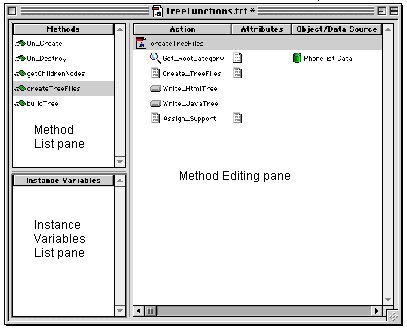
The Tango class file window consists of three panes: Method List pane, Instance Variables List pane, and Method Editing pane.
The following is an example of the Tango class file window:
Method List Pane
The Method List shows the names of all the methods in the Tango class file. Two types of methods are shown in the list: user-created methods and default methods.
User-Created Methods
These methods constitute the Tango class file's interface when you incorporate the Tango class file into your Tango application file. When you use a Call Method action, you are specifying one of the user-created methods on this list.
You can create as many methods for a Tango class file as you want. You can delete the user-created methods that you no longer need. You can also change the order in which the methods appear in the list.
Default Methods
The two default methods in the list are On_Create and On_Destroy.
-
When Tango Server creates an instance of the Tango class file, it automatically calls the On_Create method before any further processing.
The On_Create method is initially empty. When you select this method and specify actions in the Method Editing pane, you direct Tango Server to execute these actions prior to the creation of the instance. An example of using the On_Create method is to initialize certain instance variables.
The use of the On_Create method is optional. If you do not want to use it, just leave the Method Editing pane empty.
-
When Tango Server destroys an instance, it automatically calls the On_Destroy method just before it proceeds with the destruction.
The On_Destroy method is initially empty. When you select this method and specify actions in the Method Editing pane, you direct Tango Server to execute these actions prior to the destruction of the instance. An example of using the On_Destroy method is to perform certain clean up activities.
The use of the On_Destroy method is optional. If you do not want to use it, just leave the Method Editing pane empty.
The default methods differ from user-created methods as follows:
they are invisible when you view Tango class file information in the Objects Workspace
you cannot call them using Call Method actions or the <@CALLMETHOD> meta tag.
Method Editing Pane
When you select a method on the Method List, the Method Editing pane shows the actions included in this method. (The root item in the Method Editing pane is the method currently selected on the Method List.)
Because a method of a Tango class file is simply a reusable software component that you insert into a Tango application file, the content of a method looks like and behaves like part of the content of a Tango application file.
Indeed, the Method Editing pane resembles the Tango application file window. In most cases, you use the Method Editing pane similarly to the way you use the Tango application file window: you drag actions from the Action bar into the pane and edit them.
For more information, see "Copying an Action" and see "Differences from Tango application files".
You can copy an action or a series of actions within the same Tango class file and between Tango class files. You can also copy actions to and from Tango application files. Other than a few exceptions, copying actions involving Tango class files is similar to copying actions in Tango application files.
Differences from Tango application files
Because Tango class files and Tango application files do not perform identical functions, there are some differences between Tango class files and Tango application files that you should be aware of:
Executing a Tango class file. You cannot execute or branch to a Tango class file directly. All access to Tango class file methods is via Call Method actions or <@CALLMETHOD> meta tags and executed in a Tango application file.
Branch action. The Branch action, when used in a method, is limited to branching within the current method. If you copy from a Tango application file to a Tango class file, Tango Editor does not allow you to copy a Branch action that branches to a location outside the current method.
Return value/Results HTML. Each method call has its own private Results HTML, which is empty at the start of its execution.
Like Tango application files, the Results HTML associated with each action is accumulated as execution progresses. Unlike Tango application files, however, the Results HTML of a method is not automatically appended to the Results HTML of the Tango application file. You may return the Results HTML as the method's return value or in an output parameter (using <@RESULTS>). To append the method's Results HTML to the calling Tango application files, you need to include the variable you stored it in the Tango application files's Results HTML, for example, <@VAR NAME="myresults" ENCODING="none">.
Push attribute. The Push attribute is disabled for actions inside a method. If you copy from a Tango application file to Tango class file, Tango Editor turns off the Push attribute automatically.
Assign action. The Assign action in a Tango class file allows you to set variables in the instance and method scopes, in addition to those scopes available to Tango application files.
When copying Assign actions from a Tango class file to a Tango application file, all the variables are copied; however, the scopes of instance and method variables are changed from instance and method to default.
For more information, see "<@GETPARAM>" and "<@SETPARAM>" in the Meta Tags and Configuration Variables manual.
Meta tags to set and get parameters. Within a Tango class file method, there are two meta tags available (<@GETPARAM> and <@SETPARAM>) which set and return the value of a named parameter. The tags get and set the named method variables, with the added benefit of error checking; that is, if the variable specified is not a parameter, an error occurs.
For more information, see "maxActions" and "returnDepth" in the Meta Tags and Configuration Variables manual.
Recursion. You can make recursive calls to a method. The returnDepth configuration variable tracks recursive calls to methods as well as Branches, and the maxActions configuration variable includes actions in methods in its count of the total executed.
Error handling. When an error occurs in a Tango class file method action:
Nested Method Calls
When you specify actions for a method, you can include Call Method actions involving other methods. The calling of one method from another is a nested method call.
Assuming method A calls method B, the following issues affect the nested method call:
The instance and method variables in method A become unavailable until Tango Server has completed the execution of method B and returns to method A.
The exception is that, if method A and method B are part of the same instance, the instance variables are shared.
Assignments to configuration variables in the instance and method scopes of method A have no effect on method B.
If an assignment is made to method$dateFormat in method A, the method$dateFormat in method B remains empty until set explicitly. Further, the scope of method$dateFormat in method B is determined by the default scoping rules, not the scope set in method A.
Self-Referencing
When you specify actions for a method, you can include a Call Method action that refers to the current Tango class file. In this case, the object instance variable for this self-referencing Call Method action is set automatically: the scope is Method and the name is this.
Instance Variables List Pane
The Instance Variables List shows the names of all the unique instance variables for the Tango class file. All instance variables in the list are available to all the methods in the Tango class file.
Instance variables (variables in the instance scope) are available only in Tango class files; they are not available in Tango application files.
The Instance Variables List in a new Tango class file is empty. It is populated automatically if you assign instance variables in the Tango class file by doing one of the following:
using the Put result into variable section of a Call Method action window
using the Out or In/Out parameters of the Parameter List of a Call Method action window.
An item that appears in this list may be dragged into an Assign editing window or Results HTML window, automatically assigning the instance variable in that Assign action or creating a snippet with the <@ASSIGN> meta tag in that Results HTML.
When you delete all references to an instance variable in all the Assign actions of a Tango class file, this instance variable automatically disappears from the Instance Variables List.
To use an instance variable in an assignment
Open an Assign editing window or a Results HTML window in the Method Editing pane of the Tango class file window.
Drag an item from the Instance Variables List into the Assign editing window or Results HTML window.
 Tip: When you click in the
Tango class files window, the Tango class files window is brought to the front,
which may hide the Assign editing window or Results HTML window. Rearrange the
windows so that both are visible at the same time.
Tip: When you click in the
Tango class files window, the Tango class files window is brought to the front,
which may hide the Assign editing window or Results HTML window. Rearrange the
windows so that both are visible at the same time.
Method Definition Window
The Method Definition window contains important information about a Tango class file method. It allows you to view and edit this information.
To open the Method Definition window
For more information, see "To open the Tango class file window".
-
In the Method List pane, double-click a user-created method.
In the Method List pane, select a user-created method, control+click it, and choose Open from the contextual menu that appears.
From the Method List pane, select a user-created method. Then, double-click the root item in the Method Editing pane.
From the Method List pane, select a user-created method. Then control+click the root item in the Method Editing pane, and choose Open from the contextual menu that appears.
 Note: Default methods have no
return values or parameters.
Note: Default methods have no
return values or parameters.
The Method Definition window consists of the return value section and the parameter list for a method.
Return Value
You return either the Results HTML or the contents of a method variable, by choosing one of the options.
If you select Method Variable:
The default data type for this variable is Any. You can select the data type you want from the Type pop-up menu. When returning results, Tango generates an error if the value is not of the type specified here.
Parameter List
The Parameter List is where you define the interface to a method of a Tango class file.
A parameter allows a Tango application file to exchange data with a Tango class file. The exchange can be an input (passing data from the application file to the Tango class file), output (passing data from the object to the application file), or input/output (passing data from the application file to the object and putting the new value from the object in the original variable in the application file).
The Parameter List for a method of a Tango class file resembles the Parameter List in the Call Method action window. When you perform a Call Method action on a Tango class file, the information from the Parameter List in the Method Definition window is transferred to the Parameter List in the Call Method action window.
The Parameter List for a Tango class file consists of four columns: In/Out, Name, Type, and Comments.
 input parameter
  output parameter
  input/output parameter
 For more information, see "Understanding Data Types" and "Document Object Model"
-
This column shows the data type for each parameter. You can accept the default, which is Text, or select one of the following from the pop-up menu: Any, Array, Object, and DOM.
If Any is selected, any type of value is allowed; otherwise, Tango Server checks the input value for the parameter when it starts to execute a method. If the value does not match the specified type, Tango Server generates an error.
-
This column allows you to enter your optional comments for each parameter.
[back to top] Creating a Tango Class File
To create a Tango class file
From the File menu, choose New, then choose Tango Application File, or, on the main toolbar, click the New Tango Class File icon.
The Tango class file window opens. This window consists of three panes: Method List pane, Instance Variables List pane, and Method Editing pane.
An example of the Tango class file window is shown on The following is an example of the Tango class file window:.
If you want to use the On_Create method, select On_Create from the Method List. In the Method Editing pane, specify the actions you want to include in this method.
If you want to use the On_Destroy method, select On_Destroy from the Method List. In the Method Editing pane, specify the actions you want to include in this method.
Add a method to the Method List.
The new method is automatically selected and becomes the root item in the Method Editing pane.
For more information, see "Saving a Tango Application File or Tango Class File as Run-Only".
Tip: If you want, you can save
the Tango class file as run-only. This feature works in a way similar to that
of the Tango application file.
[back to top] Editing a Tango Class File
There is a major difference between editing a Tango class file before and after it is incorporated into a Tango application file, through a Call Method action. Before you use a Tango class file in a Tango application file, you can edit it any way you want to suit your purpose. After you include a Tango class file in a Tango application file, you are restricted in what you can do with the interface of the Tango class file.
You can think of the interface of a Tango class file as a contract between the Tango class file and the Tango application file that uses the Tango class file. Once the contract is in effect, you can no longer change the terms of the contract.
When you incorporate a Tango class file into a Tango application file, the latter treats the former as a "black box" and interacts with it only through its interface. Both the Tango class file and the application file honor the interface like a contract. Thus, you have to be cautious when altering the interface of a Tango class file once a Call Method action is used on that Tango class file.
 Caution: Do not alter the
parameters or variables of a method, or the names of the Tango class file and
the method, after using a Call Method action on that method. Tango Server
cannot execute the Call Method action when these elements are altered; it
returns an error.
Caution: Do not alter the
parameters or variables of a method, or the names of the Tango class file and
the method, after using a Call Method action on that method. Tango Server
cannot execute the Call Method action when these elements are altered; it
returns an error.
You can generally add new methods, parameters and variables without affecting existing Call Method actions. In many cases, you can modify the actions within a method, as long as you do not change the existing parameters and variables.
The following windows and dialog box are used for editing Tango class files:
Tango class file window. This is where you do most of the editing, with the exception of return values and parameters.
Method Definition window. This is where you edit the return value and parameters for each method.
Method Properties dialog box. This is where you edit comments of a method.
All the procedures in this section require you to start with an open Tango class file window. To open a Tango class file window, choose Open from the File menu, then locate and open the Tango class file you want to edit.
Adding a New Method
To add a new method
-
Control+click anywhere in the Method List pane and choose New Method from the contextual menu that appears.
The new method appears at the bottom of the Method List. The default name is new_method.
Note: Tango resolves name
conflicts automatically. If new_method already exists, the name
becomes new_methodX, where X is an
integer.
If you want, change the name of the method to one that is more meaningful.
Tip: You can also drag the
method to anywhere you want in the list. The only restriction is that
On_Create and On_Destroy are always at the top of the list.
Renaming a Method
The default name of a method is new_method or new_methodX, where X is an integer. It is recommended that you change the method name to one that is more meaningful.
To rename a method
The rules for assigning method names are the same as those for naming variables.
Deleting a Method
You can delete a method from a Tango class file if you no longer need it, provided that no Tango application file is including this method in its Call Method actions.
Caution: If a Tango
application file calls a method that no longer exists, Tango Server returns an
error when attempting to execute that Call Method action.
To delete a method
-
Note: You cannot delete the
two default methods, On_Create and On_Destroy. To prevent
Tango from using either of these default methods, delete all its actions.
When a dialog box appears, asking you to confirm the deletion, choose OK.
Copying a Method
You may want to create a method that performs a task similar to one performed by an existing method in the current Tango class file or another Tango class file. Instead of having to re-create the method--along with all its actions and parameters--you can copy an existing method to a new location, and then modify the newly created method.
To copy a method
-
To copy to the same Tango class file, press z and drag the method to the location you want on the same Method List.
To copy to a different Tango class file, drag the method to the location you want in the Method List of that Tango class file.
Tip: Alternatively, you can
copy and paste the method using the Edit commands. Edit commands are available
from the Tango Editor Edit menu and from the contextual menu.
For more information, see "Renaming a Method".
For more information, see see "Modifying a Method" and see "Setting Return Values and Parameters".
- Tango resolves name conflicts automatically. If you want, change the name of the new method to one that is more meaningful to you.
- Where appropriate, edit the actions in the new method (in the Method Editing pane of the Tango class file window) and edit the return value and parameters (in the Method Definition window) for the new method.
Modifying a Method
To modify the actions in a method
Setting Return Values and Parameters
For each selected method, you can specify where you want Tango Server to put the return value; you can also insert, delete, or edit its parameters.
In all cases, open the Method Definition window first.
To assign a return value
Select either Results HTML or Method Variable, using the appropriate radio button.
If you select Method Variable, enter a name for this variable (the default is returnValue), and select the data type for this variable from the Type pop-up menu (the default is Any).
To add a parameter
Control+click anywhere on the Parameter List and choose Insert from the contextual menu that appears.
To delete a parameter
Control+click the parameter you want to delete. (You can select more than one parameter for deletion by pressing
 or
Shift, and then control+click.)
or
Shift, and then control+click.)
To edit a parameter
Click in the In/Out column of the parameter you want to edit. Select In, Out, or In/out from the pop-up menu that appears.
Click in the Name column of the same parameter and edit the parameter name.
Click in the Type column of the same parameter. Select the Tango data type you want to use, from the pop-up menu that appears. If you want the parameter to accept all Tango data types, select Any.
Getting and Setting Parameters Within a Tango Class File Method
Inside a method, you must get the values of parameters and set the values of parameters, if your method uses them.
To get parameter values within a Tango class file method
For more information, see "<@GETPARAM>" and "<@VAR>" in the Meta Tags and Configuration Variables manual.
Use <@GETPARAM NAME=myparam> to return the value.
<@GETPARAM> retrieves the value of a parameter within a Tango class file. This tag is similar to <@VAR>, but performs error checking to ensure that only parameters in the current method can be retrieved.
To set parameter values within a Tango class file method
For more information, see "<@SETPARAM>" and "<@ASSIGN>" in the Meta Tags and Configuration Variables manual.
Use <@SETPARAM NAME=myparam VALUE=myvalue>.
<@SETPARAM> sets the value of a parameter within a Tango class file. This tag is similar to <@ASSIGN>, but performs error checking to ensure that only Out and In/Out parameters in the current method can be set.
Use <@ASSIGN NAME=myparam SCOPE=method VALUE=myvalue> to set the value.
For more information, see "Assigning Variables With the Assign Action".
Parameters are always method variables.
Method Properties
The Method Properties dialog box displays the name of the method you selected. It allows you to enter or edit comments on this method.
To view method properties
[back to top] Debugging Methods
This feature allows you to see useful information about the execution of a method. The debug mode applies to an entire Tango class file, not a particular method or a particular action within a method.
In general, debugging a method works in a way similar to debugging a Tango application file. The following characteristics are specific to debugging methods:
When you enable or disable the debug mode for any method in a Tango class file, it applies to all the methods in the Tango class file.
The debug mode for a Tango class file operates independently from the debug mode for an application file. If an application file includes a method from a Tango class file and you want to debug both the application file and the method, you have to enable the debug mode in both files.
To set the debug mode in a Tango class file
When the debug mode is enabled, the debug icon appears in the Attributes column of the Method Editing pane. You can repeat this procedure to alternate between enabling and disabling the mode.
[back to top] Setting Search Paths for Tango Class Files
Setting search paths for Tango Editor and Tango Server are two separate tasks. You need to do both.
Tango Editor
The list of search paths for Tango class files is stored on your machine and displayed in the Objects section of the Preferences dialog box. Tango uses this list to locate Tango class files when a Tango application file refers to them.
Adding Paths to the List
When you add a Tango class file to the Objects Workspace, Tango Editor automatically adds the absolute path to that object to the list of search paths. You can view this list in the Objects section of the Preferences dialog box.
In a team development environment, there may be Tango class file libraries on other machines that you want to use; you can manually add the paths to these libraries to your list.
Setting the Search Order
When searching for a Tango class file, Tango Editor starts from the path at the top of the list and moves down the list. Because Tango identifies Tango class files by names, the search stops as soon as Tango finds the first Tango class file with that name.
If you have more than one version of a Tango class file in your system, you may want to order the paths so that Tango finds the one you want to use for a particular purpose. Re-ordering of the paths is important if you want to use one version for development and another for deployment.
Tango Server
When locating Tango class files in Tango Server, a configuration variable called TCFSearchPath defines the search path for Tango application files. This variable is valid in all scopes: local, user, application, cookie, domain, and system.
For more information, see "TCFSearchPath" in the Meta Tags and Configuration Variables manual.
The TCFSearchPath configuration variable contains a semi-colon separated list of web root relative paths in which to look for the Tango class files. Tango Server's treatment of this configuration variable is the same as all others; that is, it uses the narrowest scope in which the variable is first defined to do its search.
Because Tango class files are stored on the Web server, the paths in the TCFSearchPath configuration variable are always relative to the Web root, as mentioned. For example, a valid TCFSearchPath is:
TCFSEARCHPATH=MyApp/TCFs/Logon/;MyApp/TCFs/GuestBook/;
FoneList/Objects/;DougApp/OtherStuff/MyObjects/
If the object is not found in the Tango class file search path, Tango Server tries to find the object in the Web server document root folder as a last resort.