Working With Variables
Using Variables in Tango
Variables are placeholders that you can assign a value to; they are created and assigned values using the Assign action or the <@ASSIGN> meta tag.
Every variable belongs to a scope, which tells Tango if the variable is to be used only for the particular application file execution, within a Tango application, for a user, or for a particular domain being served with Tango. Variables can also belong to special scopes within Tango class files that apply to a method or an instance of a Tango class file.
Arrays are a special variable type that allow you to create a structured data table with multiple values, as opposed to standard variables which only store one value.
You can also create variables that contain XML data structures (document instance variables) and variables that contain objects. These variable types are discussed in "Document Object Model" and "Understanding Objects in Tango".
One important set of variables determines the behavior of certain Tango options. These are called configuration variables.
This chapter covers the following topics:
- introduction to variables--standard and array--including variable scope and its effects
- how to assign values to variables
- configuration variables
- changing a special user variable option: the user key.
![[top]](arrow.gif) [back to top]
[back to top] About Variables
Variables are defined and given values with an Assign action in a Tango application file or a Tango class file.
Variables can also be assigned values by using the <@ASSIGN> meta tag.
You can assign any combination of literal values and meta tag values to a variable.
For example, to assign to a variable a combination of meta tags that could evaluate to a full phone number using values from area code and phone number form fields, you could use the following meta tags:
<@ASSIGN NAME=PhoneNum
VALUE="(<@POSTARG area>) <@POSTARG phone>">
This assigns to a variable called PhoneNum (in default scope). The variable is created, if it does not already exist, and the value of the variable is set to what the meta tags within the VALUE attribute evaluate to when the Tango application file is executed, plus the characters within the double-quotes before and after the meta tags.
Naming Variables
- must start with a letter
- may contain numbers, letters, and the underscore ("_") character
- may be no longer than 31 characters.
Variable names are case insensitive; for example, myVar is the same variable as MYVAR and MyVaR.
Understanding Scope
Every variable belongs to a scope. There are several scopes that are used for different purposes within Tango. The following diagram shows the different scopes and their relationships.
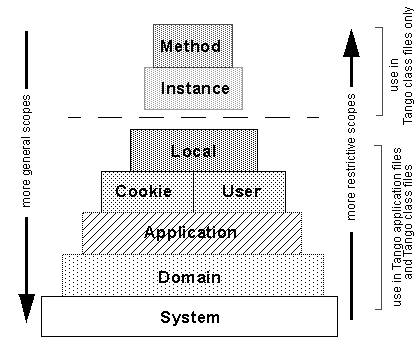
Variables that are assigned values in more restrictive scopes override variables with the same name that are assigned values in more general scopes.
Six scopes are available to all Tango files (Tango application files and Tango class files).
- Local scope is the most restrictive: variables that belong to this scope are used only for the execution of a particular Tango application file.
- Cookie scope refers to variables that are sent to and kept by Web browsers.
- User scope refers to variables that are set for particular users within Tango.
- Application scope refers to variables that apply to all Tango application files in a particular Tango application.
- Domain scope refers to variables that are used in a particular Tango domain, which is a single domain name (base URL or IP address) or a defined group of domain names (a Tango domain).
- System scope is the most general, applying to the entire Tango Server. This scope is restricted to configuration variables.
For more information, see "Custom Variable Scopes".
In addition to these basic Tango scopes, you can also define custom scopes.
For more information, see "Tango Class Files".
When you use Tango class files, two additional scopes are available to you. The variables in these scopes are only available in methods within Tango class files.
- Method scope refers to variables that are used only in the current invocation of the method.
- Instance scope refers to variables that are used in the instance of the Tango class file to which the current method belongs.
You can find more details on these scopes in the following sections.
Basic Tango Scopes
Local Scope
Local scope is used for variables that expire after an application file is executed. That is, after the application file (and its branches, if any) has finished executing, the variable is purged from memory.
Local scope is created at the beginning of the Tango application file execution, persists in any Tango application files branched to and Tango class file methods called, and is destroyed when the Tango application file ends execution and returns results to the user.
An example of the use of a local variable is a variable for a counter within a loop. The counter is not needed outside the application file that it is in, so using a local variable is appropriate.
For another example, a user might enter a choice during the execution of an application file to have full explanations returned during the execution of an application file (for a beginning user), or rather terse commands (for an experienced user). At the beginning of the application file, a local variable is set, and that variable is used in the rest of the application file to determine what HTML is returned to the user.
Cookie Scope
Cookie scope is used for variables that are sent to the user's Web browser as cookies (that is, saved in a small text file and kept by the Web browser for a specified amount of time).
Cookies are saved by the Web browser and then are sent to the site by the Web browser when it returns to the site that generated the cookie in the first place. Cookie variables can be used to save state information between Web browser sessions or in a single Web browser session.
There are a variety of cookie options that can be set for cookie variables, such as when the cookies expire.
User Scope
Variables that have user scope let you store and access values associated with a particular user. Once an assignment has been made to a user variable, its value is available in subsequent actions within the same application file execution and in any application files executed afterward.
For example, user variables would be necessary in an application file that logs users in to a private area of your Web site, displaying a Web page that prompts for a user's name and password. You might want to save the entered name so you can display it on personalized pages in subsequent queries. Or you may need to use the name to restrict database queries performed by that user. Both of these operations would be performed with the use of a user variable.
For more information, see "variableTimeout". in the Meta Tags and Configuration Variables manual.
User variables expire 30 minutes after the user associated with them last accesses Tango. You can change the expiry time by changing the value of the Tango configuration variable variableTimeout in user scope.
Application Scope
Application scope defines variables that apply to all application files within a Tango application. When Tango checks for variables, application scope is more general than user scope and less restrictive than domain scope.
For more information, see "Tango Applications".
Applications are defined as a group of Tango application files in a particular application folder, which is defined in the application configuration file or configured with the Tango 2000 Configuration Manager (the config.taf application file).
You can define many configuration variables in application scope; they apply only to the Tango applications.
Because application scope is more restrictive than domain scope, if you want a certain application scope to apply to all domain names in a particular domain, you must specify the Tango domain when you specify the Tango application.
For more information, see "variableTimeout". in the Meta Tags and Configuration Variables manual.
When a new application scope is created, its variableTimeout is set to 4230 minutes (three days) by default. You can change the timeout by changing the value of the Tango configuration variable variableTimeout in application scope.
For more information, see "Feature Switches".
You can turn application scope on or off using the applicationSwitch configuration variable. You improve performance by setting this switch to off when applications are not being used.
Domain Scope
Domain scope is used for variables that are relevant to a particular domain name or Tango domain. Domain variables, like system variables, are persistent across applications, application files, and users.
To explain domains, it is useful to distinguish between domain names and Tango domains.
Domain names are different base URLs and IP addresses: for example, one Web server could be hosting several different domains (www.my_company.com, www.your_company.com, www.a_non_profit.org) at several different IP addresses (for example, 152.23.23.45, 152.65.34.32, and so on).
For more information, see "domainScope Key" in the Meta Tags and Configuration Variables manual.
By default, the domain key (that is, the piece of information Tango uses to determine which domain a user belongs to) is based on the SERVER_NAME CGI parameter. The value of the SERVER_NAME parameter comes from the URL used to initiate each request by a user. Tango by default uses an encrypted form of the domain name used to access a Tango application file--base URL or IP address--as the domain scope key, and any variable set with scope=DOMAIN is set for the particular domain name where the application file is executed. For example, if a user requests:
http://www.yourserver.com/foo.taf
the domain variable is keyed on "www.yourserver.com". Everyone using "www.yourserver.com" to access a Tango application file gets the same values for domain variables.
However, if a user accesses the exact same application files with the IP address of the Web server (http://206.186.95.106/foo.taf), the domain scope variable is different because the key value is now the IP address, and not the domain name. The same applies if you access the Web site locally with http://localhost/foo.taf.
There are cases where you want the same domain variables to be available even though a user is hitting your Web site through different domain names (base URLs or IP addresses).
You can set up a Tango domain which incorporates several domain names and IP addresses.
For more information, see "Tango Domains".
Tango domains are listed in the domain configuration file. To set up a Tango domain, use the config.taf application file to specify which domain names should be part of the Tango domain. Depending on how users access your Tango Server, you may need to set up one or several Tango domains. You may also need to list localhost and 127.0.0.1 as domain names that belong to a particular Tango domain, so that hits coming in from those domain names (which always reference the current machine) are part of a Tango domain, and share domain scope variables correctly.
For more information, see "variableTimeout" in the Meta Tags and Configuration Variables manual.
Domain scope variables, by default, expire after the time period specified by variableTimeout (system scope). To change the expiry timeout period for domain variables, assign the desired value to variableTimeout in domain scope.
System Scope
System scope is used for variables that are set at the system level, that is, only configuration variables. Many configuration variables that affect the behavior of Tango are set with system scope. For example, the variable dateFormat sets the way the date is displayed when it is returned by Tango with a meta tag such as <@CURRENTDATE>. If this variable is set with system scope, then all dates returned by Tango are in that format.
For more details on different scopes for configuration variables, see "Understanding Scope".
Certain configuration variables can be set for different scopes. This means that the value changes in one particular scope (and all scopes that scope dominates) while maintaining its default value elsewhere.
For example, dateFormat can be set with scope=LOCAL, which changes the format of the date for the current application file; scope=USER, which would change the format of the date for all application files executed by a particular user; or scope=DOMAIN, which would change the format of the date for all application files and users that access Tango from a particular URL or Tango domain.
To set system configuration variables
You can set system configuration variables with the Tango 2000 Configuration Manager (the config.taf application file). This application file prompts you for a password and then presents groups of related configuration variables on different screens, allowing you to easily set system configuration variables (as well as configure Tango Server, applications, and domains).
To set configuration variables without using the Tango 2000 Configuration Manager (the config.taf application file)--that is, in an application file--you must know the correct password. This password is stored in the Tango 2000 Server Preferences configuration file and a configuration variable called configPasswd.
When you attempt to set a system configuration variable, Tango checks to see if there is a variable called configPasswd with scope=USER that matches configPasswd with scope=SYSTEM. If there is, Tango lets you change configuration variables. If not, Tango returns an error message.
Setting configPasswd scope=USER can interact with user keying mechanisms; see "Changing the User Key".
That is, you must assign the value of an entered string (for example, <@POSTARG NAME="Password">) to the configuration variable configPasswd with scope=USER using the Assign action or the <@ASSIGN> meta tag.
 Note: You do not need this
password to get the values of system configuration variables, except for
configPasswd itself.
Note: You do not need this
password to get the values of system configuration variables, except for
configPasswd itself.
Tango Class File-only Scopes
Instance Scope
Instance scope is available only when using object instances of Tango class files. A variable in this scope persists across all calls to methods in the same object instance.
For more information about creating Tango class files, see Chapter 23, "Tango Class Files".
Tango Server creates this scope when it creates an object instance. This scope goes away when Tango Server destroys the object instance (more precisely, after the Tango class file calls the On_Destroy method).
Method Scope
Method scope is available only in Tango class file methods. A variable in this scope exists for the duration of a single Call Method action. All parameters are part of method scope.
Tango Server creates this scope when it begins to execute a Tango class file method. This scope goes away when the method returns.
Custom Variable Scopes
In addition to specifying variables that apply to methods, instances, Tango application files, users, applications, domains or to all of Tango Server, Tango allows you to create custom scopes that are used to store variables.
Custom variable scopes are useful for values that should be available everywhere, to all users. Custom scopes are less restrictive than other scopes because they apply to all of Tango Server, regardless of the domain name.
Custom scopes fall outside of the Tango scope hierarchy; therefore, only explicitly specifying the scope when returning the variable allows Tango Server to find the variable. You must specify a custom scope to access a variable assigned to it; custom scopes are not searched when variables are assigned or referenced without scope.
Example: Setting Up a Chat Room
You are creating an application file to set up a chat room for all users of your Tango Server -- no matter what application they are currently in. You create a series of variables in custom chat scope to set up your chat server; for example, a variable called chat$allusers that stores a list of current "chatters". All variables in chat scope can be accessed by all users of your Tango Server who execute application files that specify the custom chat scope.
Specifying Custom Scope
You can specify a custom scope anywhere Tango accepts a scope; for example, you can create a custom scope in the text field/pop-up menu in the Assign action. The following are examples of how custom scope is used:
<@ASSIGN NAME="foo" SCOPE="myCustomScope">
<@VAR NAME="myCustomScope$foo">
Timeout for Custom Scope
For more information, see "variableTimeout" in theMeta Tags and Configuration Variables manual.
variableTimeout can be used to set the timeout value of a custom scope. variableTimeout allows you to specify the expiration interval (in minutes) of custom scope variables.
By default, variableTimeout of a custom scope is set to the timeout of user scope; that is, 30 minutes.
To set variableTimeout for a custom scope, assign a value to variableTimeout in that custom scope; for example:
For more information and the format and restrictions of this value, see "variableTimeout Trigger" in theMeta Tags and Configuration Variables manual.
variableTimeoutTrigger allows you to specify an HTTP URL to activate just prior to expiry of the custom scope's variables. This configuration variable can be used for a variety of purposes, for example, to clear the database of expired variables used in custom scope.
There is no default timeout trigger for variableTimeoutTrigger.
Configuration Variables and Custom Scope
For more information, see "customScope Switch" in the Meta Tags and Configuration Variables manual.
You can enable and disable custom scope using the customScopeSwitch configuration variable. Applications that use custom scope do not work when this switch is disabled. The default setting for customScopeSwitch on Tango Server is off.
Returning Variable Values
To have Tango return the value of a particular variable, use the <@VAR> meta tag. This tag is replaced with the variable value at the time that the application file is executed. For example, to return the value of the variable named fred in user scope, use the following meta tag and scope attribute:
<@VAR NAME="fred" SCOPE="user">
Default Scoping Rules
If you do not specify a scope attribute, Tango checks for matching variables in different scopes, from the most restrictive to the most general. For example, if you use the following meta tag:
Tango checks for matching variables in local, user, application, domain, and system scope.
Note: Cookie scope is a
special scope, and Tango does not check for matching variables with this scope
when returning unscoped variable values with <@VAR>.
Tango returns the value for the first matching variable that it finds in the scope hierarchy.
 Caution: Tango does not search
any custom scope. If you want to assign a value to or retrieve a value from a
custom scope, you must explicitly specify the scope.
Caution: Tango does not search
any custom scope. If you want to assign a value to or retrieve a value from a
custom scope, you must explicitly specify the scope.
Shortcut Syntax for Returning Variables (@@foo)
There is a shortcut syntax for returning variables as well, with or without scope: use a double "@" and the name of the variable. The following two notations are equivalent:
To use a scope parameter with this shortcut, place it in front of the variable being accessed, with a dollar sign ("$") in between. The following two notations are equivalent:
<@VAR NAME="fred" SCOPE="user"> --> @@user$fred
If you are creating complicated meta tag syntax, using this shortcut may help to make things clearer.
The 31-character length limit on variable names is exclusive of any scope specifier; for example, in local$longvariablename, the length limit applies to the variable name portion.
Purging Variables
You can clear obsolete or no-longer-needed variables from memory by using the <@PURGE> meta tag to remove a particular variable from a scope or to remove all variables from a scope.
For more information, see "<@PURGE>" in theMeta Tags and Configuration Variables manual.
For example, using <@PURGE> to remove the variable foo from DOMAIN scope looks like this:
<@PURGE NAME="foo" SCOPE="domain">
Clearing a user's variables when they log out is one example of using the <@PURGE> meta tag to remove all variables from a specific scope. The following example shows how to remove all variables from USER scope:
Arrays
Arrays are a special type of variable that allow you to store many different values in a structured format. This is distinct from the standard variable, which only stores one value.
Arrays are structured as a table with rows and columns; values are saved at each row and column intersection. This is similar to the way values are saved in a database table: as rows and columns.
For example, a three-row by four-column array with the values of the first twelve integers looks like this:
Setting Arrays
For more information, see "<@ARRAY>" in theMeta Tags and Configuration Variables manual.
To create an array--for example, the one in the previous paragraph--use the <@ARRAY> tag within the Assign action or the <@ASSIGN> and <@ARRAY> meta tags together:
You can use the <@ARRAY> tag to create arrays by using only rows and columns (ROW attribute and COLS attribute), which creates an array with the specified dimensions, all of whose elements are empty, or by using the VALUE attribute to create and initialize the array with values. If ROWS, COLS, and VALUE are specified, they must match in terms of the number of rows and columns specified.
The meta tag assignment of an array to a variable looks as follows:
For more information, see "<@ASSIGN>" in theMeta Tags and Configuration Variables manual.
<@ASSIGN NAME="arrayVar" VALUE=<@ARRAY ROWS="3" COLS="4" VALUE="1,2,3,4;5,6,7,8;9,10,11,12">>
When using an Assign action to create an array and assign it to a variable, the Value field would contain an <@ARRAY> meta tag.
For more information, see "cDelim" and "rDelim" in the Meta Tags and Configuration Variables manual.
(The row and column delimiters for VALUE are set with the configuration variables rDelim and cDelim, or with the <@ARRAY> tag's optional attributes RDELIM and CDELIM. By default, they are set to ";" and "," respectively.)
Array cells can contain single values only. They cannot contain other arrays.
Array Formats
How arrays are returned depends on context, that is, where an array-returning meta tag such as <@VAR> is used.
Arrays are returned as array variables (with their special internal structure) when used in assignments to other variables, for example:
<@ASSIGN NAME="fred"
VALUE="<@VAR NAME=
'array_variable'>">
When referred to anywhere else (for example, returned in Results HTML using the <@VAR> meta tag), arrays are converted to a text representation using the supplied array-returning attributes for prefixes and suffixes, or the configuration variable defaults, if no attributes are specified.
Returning the Values of Arrays
An array is not just a list of values; it has two-dimensional structure. For example, if you set up and give values to the variable fred as above and then ask Tango to return the value of the array in HTML only, Tango returns the structured string of values, using delimiters to separate rows and columns.
For more information, see "Array-to-Text Conversion Attributes" in the Meta Tags and Configuration Variables manual.
Along with many other uses for programming and database work, arrays offer a quick method of returning a table or ordered list of values in HTML. All meta tags that return arrays, such as <@VAR>, have attributes that can be used with arrays:
APrefix: the array prefix string
ASuffix: the array suffix string
RPrefix: the row prefix string
RSuffix: the row suffix string
CPrefix: the column prefix string
CSuffix: the column suffix string
For detailed information on all configuration variables, see the Meta Tags and Configuration Variables manual.
The defaults of these parameters are set with configuration variables. If the above array variable is returned using <@VAR> with the default parameters:
APrefix='<TABLE BORDER=1>'
ASuffix='</TABLE>'
RPrefix='<TR>'
RSuffix='</TR>'
CPrefix='<TD>'
CSuffix='</TD>'>
For more information on arrays, see "<@ARRAY>", "<@VAR>", and other meta tags that return arrays in the Meta Tags and Configuration Variables manual.
The following simple table is returned when <@VAR NAME="fred"> is retrieved in Results HTML:
<TABLE
BORDER=1><TR><TD>1</TD><TD>2</TD><TD>3</TD>
<TD>4</TD></TR><TR><TD>5</TD><TD>6</TD><TD>7</TD>
<TD>8</TD></TR><TR><TD>9</TD><TD>10</TD>
<TD>11</TD><TD>12</TD></TR></TABLE>
The rendered HTML code displayed in a Web browser looks like this:
Using different suffixes and prefixes could create different kinds of HTML code, such as various kinds of lists.
You can retrieve one single value from an array by specifying row and column co-ordinates:
<@VAR NAME="FRED[2,3]">
--> Tango returns 7
You can return one column or one row from an array by specifying only one of the co-ordinates, and setting the other to *:
<@VAR NAME="FRED[2,*]">
--> Tango returns a one-column array with the values 5 6 7 8
<@VAR NAME="FRED[*,3]">
--> Tango returns a one-row array with the values 3 7 11
Special Array: resultSet
Whenever an action returns a result rowset in Tango (for example, a Search action), that rowset is assigned, in array format, to the local variable resultSet. This variable could be used in Results HTML to return your search result, for example:
Your search returned the following results:
<@VAR NAME="resultSet" SCOPE="local">.
As with any array variable, you can use the prefix and suffix attribute name/value pairs to change how the array is formatted in HTML.
resultSet Named Columns
A special property of resultSet is that when it returns the results of a Search action or Direct DBMS query, its columns are named. This means that you can refer to the names of columns (instead of the column number) when returning the value of the resultSet array. For example, if you selected these columns in the order shown (as the result of a Search action):
customer_last_name |
customer_ID |
phone_number |
The following expressions in Results HTML evaluate as shown:
<@VAR NAME="resultSet[3,2]">
--> Tango returns 1234
Using named columns, you could return the same values using the following syntax:
<@VAR
NAME="resultSet[3,customer_ID]">
--> Tango returns 1234
You can use a combination of asterisks and named columns:
<@VAR
NAME="resultSet[*,customer_Name]">
--> Tango returns Smith Jones Johnson (a one-column array).
Row Zero of Arrays
Many returned arrays, such as the resultSet array returned from a Search action (as in the previous example), have column names saved in row zero of the array.
As in the previous example, you can use the row zero column names to access the columns in the array using array-returning syntax. You can also return these values (column names) by specifying row and column co-ordinates [0,*]. For example, to return only column names from a resultSet array:
When you use meta tags other than <@VAR> which return arrays (such as <@DATASOURCESTATUS>), you cannot access row zero of that array directly, even though it exists. To access row zero, you must put the returned result of the array-returning meta tag into a temporary array, and then return row zero of that temporary array.
For more information, see <@DATASOURCE STATUS> in the Meta Tags and Configuration Variables manual.
<@ASSIGN NAME=tempArray SCOPE=local value=<@DATASOURCESTATUS>>
[back to top] Assigning Variables With the Assign Action
To assign a variable
- Drag the Assign action from the Actions palette into the Tango application file or Tango class file window.
The Assign action is inserted into the Tango application file or Tango class file; a new variable assignment appears if it is a new Assign action.
The Assign editing window consists of a three-column list. Each row of the list shows the variable scope, name, and value.
You can add one or more variable assignments to each Assign action.
Editing Variable Assignments
You type text in the Name and Value fields. The Scope field contains a text field/pop-up menu that allows you to select a standard scope or define a custom scope.
For more information, see "defaultScope" in the Meta Tags and Configuration Variables manual.
The standard scopes are Local, Cookie, User, Application, Domain, or System. You can also choose default scope from the Scope field. For information on how Tango assigns scope to variables with default specified, see "How Tango Determines Default Scope in Variable Assignments".
Contextual Menu
Using the contextual menu, you can fill in names from previously-assigned variables.
The Document Variables contextual submenu contains an alphabetical list of all variables assigned (via Assign actions) in the current Tango application file or Tango class file. Selecting an item from this list sets both the scope and name for the variable assignment.
To add a new variable assignment to this window
- From the Edit menu, choose Insert.
- Control+click the Assign window, and choose Insert Assignment from the contextual menu that appears.
To select a variable assignment
To move a variable assignment
To delete a variable assignment
- Click the assignment you want to delete.
- Do one of the following:
- When the dialog box appears, asking you to confirm
the deletion, click OK.
 Tip: You can bypass the
confirmation dialog box by holding down the option key when
choosing Delete.
Tip: You can bypass the
confirmation dialog box by holding down the option key when
choosing Delete.
To view Assign Properties
- From the Windows menu, choose Properties.
- Control+click on the row and choose Properties from the contextual menu that appears.
The Assign Properties window appears.
The Assign Properties window consists of two sections:
- General. Click the General tab to edit the name, value, and scope in the General section.
- Cookie. Click the
Cookie tab to display controls for editing attributes of
cookie variables. (Each group of settings corresponds to an element of the
Set-Cookie HTTP header line.)
Note: The Cookie tab to access
the Cookie section appears only if the scope for the current assignment is
"Cookie".
The default values for new cookies are:
- Expiry
When user quits browser is the default cookie behavior as described in the cookie specifications. When this option is chosen, the Expires value is omitted from Set-Cookie line in the cookie header.
After __ [time units]. The pop-up menu for time units has minutes, hours, days, and years options. The text entry field holds up to 31 characters; a meta tag can be specified there.
- Domain
Current server omits the Domain value from the Set-Cookie line, causing the cookie to be valid for the current server.
Other allows specification of any domain string up to 31 characters. ".example.com", for example, would cause the cookie to be sent back to www.example.com, demo.example.com, sales.example.com, and so on.
- Path
Server root (/) specifies that the cookie be sent for all paths within the specified domain.
Other allows specification of a path string up to 31 characters. For example, /tango/ would cause the cookie to be sent back only for URLs below the tango folder.
- Require secure connection for client
send
True (enabled) or False (disabled). This option sets the Secure value of the Set-Cookie line. If the value is set to true, then the cookie is sent back by the Web browser only if a secure connection is being made.
How Tango Determines Default Scope in Variable Assignments
When you assign a value to a variable but do not specify a scope, Tango performs these steps to determine which scope to use:
- Tango looks for an existing variable with that name.
The search starts in the local scope, and continues up through
user, cookie, application,
domain, and finally to system scope. If Tango
finds the variable, it assigns the value to it and stops looking.
Caution: Tango does not search
any custom scope. If you want to assign a value to or retrieve a value from a
custom scope, you must explicitly specify the scope.
For more information, see "defaultScope" in the Meta Tags and Configuration Variables manual.
- If no variable with the specified name is found, Tango creates the variable in the default scope for new variables. This is by default user scope, and can be changed using the defaultScope configuration variable.
Here are some examples. Assume that these variables are already defined:
Name |
Scope |
<@ASSIGN NAME="foo" VALUE="myVal"> assigns myVal to the existing local variable foo.
<@ASSIGN NAME="doh" VALUE="myVal"> creates a new user variable called doh and assigns myVal to it.
<@ASSIGN NAME="ipsum"
VALUE="myVal" SCOPE="local">
creates a new local variable called ipsum and assigns
myVal to it.
<@ASSIGN NAME="lorem" VALUE="myVal"> assigns myVal to the domain variable lorem.
[back to top] Using Configuration Variables
Configuration variables are special values that control basic Tango behaviors. For example, there are configuration variables for controlling such settings as:
For a complete and detailed list of configuration variables, see the Meta Tags and Configuration Variables manual.
Some configuration variables can be set in all scopes (except cookie scope), some in particular scopes, and some only in system scope. For those configuration variables that can be set in all scopes, the different scopes have the following effects:
For more information, see "Configuring Tango Server"..
For more information on how to use config.taf, see Chapter 24.
- scope=SYSTEM affects
all application files executed by Tango Server. Assignments made to
these configuration variables remain in effect until you change them again
(even after stopping and starting Tango Server). The values of these variables
are saved in the Tango 2000 Server Preferences configuration
file.
The Tango 2000 Configuration Manager (the config.taf application file) provided with Tango makes it easy to change the values of these configuration variables from your Web browser. You need to know the password set by configPasswd in order to set configuration variables for the system.
For example, the configuration variable dateFormat scope=SYSTEM would set the format of the date returned by such meta tags as <@CURRENTDATE> in all Tango application files served by Tango Server.
- scope=APPLICATION affects
application files within a particular Tango application, as defined in the
application configuration file.
For example, there are situations where it is useful to have a different dateFormat in a different application. A company that does business in French and in English is being hosted on the same Web server, in different Tango applications. Because of the different conventions for date formats in the different languages, they would want the date to look quite different in each application--English or French.
The configuration variable dateFormat with scope=APPLICATION would be set to different values within each application, and from then on, dates returned by Tango (with a meta tag such as <@CURRENTDATE>) would have different formats in the different applications.
For more information, see "userKey, altuserKey" in the Meta Tags and Configuration Variables manual.
For more information, see "Changing the User Key".
- scope=USER affects
application files executed by a particular user. As with normal user variables,
these depend on the setting of a reliable user key in order to work as
expected, and they expire 30 minutes after that user last accesses Tango.
For example, you could offer the user the chance to set the dateFormat scope=USER variable, and, for that particular user from that point on, dates would be formatted the way that user wants.
- scope=LOCAL affects a
particular Tango application file execution, to override the system, domain, or
user settings in a particular case. The change is effective from the action in
which you make the assignment until the end of the application file's execution
(including all its branches if it branches to another application file, and all
methods called). For example, you can change the dateFormat for a
particular application file.
Any configuration variables that are valid in local scope are also valid in the instance and method scope.
For more information, see "Assigning Variables With the Assign Action"..
You assign values to configuration variables in the same way as assignments to other kinds of variables: by using Tango Editor's Assign action or by using the <@ASSIGN> meta tag to set configuration variables in HTML processed by Tango.
Caution: Users cannot set
system-level configuration variables unless they know the administrative
password.
As with Tango's meta tags, letter case is not important when referencing configuration variables. For example, to Tango, cacheSize, cachesize, and CACHESIZE all represent the same configuration variable.
[back to top] Shortcuts to Configuration Variable Assignments: Snippets
The Workspace contains configuration variable snippets which create assignments for configuration variables. The configuration variable snippets are organized alphabetically by category (Arrays, Data Format, Debugging, and so on) and by Scope (Application, Domain, Local, System, and User). This provides you with a quick way of creating assignments to configuration variables by dragging these snippets into an Assign action window or an HTML editing field.
To use the configuration variable assignment snippets
Dragging a configuration variable snippet into the HTML window creates an assignment using meta tags, for example, <@ASSIGN NAME="currencyChar" SCOPE="Local" Value="¥">. Tango puts your cursor at the special ¥ symbol, so you can just start typing the value of the configuration variable.
When you drag a snippet into an Assign action window, the configuration variable assignment is automatically created for you.
The Value field becomes active, ready for you to type a value in.
If you choose a snippet without a defined scope (that is, from the category section of the configuration variable snippet), the scope is set to Default.
[back to top] Using User Keys
To associate a user variable with a particular user, Tango must have a piece of information that it can use to uniquely identify that user.
Tango refers to the unique identifier used for tracking a user's variables as the user key (formerly known as the global key). Tango has several settings allowing you to control what information is used as the user key. Tango default behavior is to use three meta tags as the value of userKey:
For more information, see "<@APPKEY>", "<@CGIPARAM>", and "<@USER REFERENCE>" in the Meta Tags and Configuration Variables manual.
- <@APPKEY> returns the key value of the current application scope. This ensures that users in different applications cannot share variables.
- <@USERREFERENCE> generates a unique number for tracking each user.
- <@CGIPARAM CLIENT_IP> returns the IP address of the user who is accessing a particular Tango application file. This ensures that a session can not be taken over by someone from another IP address.
Under this scheme, when users execute their first Tango application file, Tango generates a unique user reference number and uses it as the user key. In the results sent back to the user, Tango includes the user reference number as an HTTP cookie. This cookie is remembered by the Web browser and is sent automatically with every subsequent request to your server. Tango checks for the existence of the cookie whenever it accesses a user variable. If it was sent, the cookie value is used as the user key.
To help understand how user variable tracking works, imagine that two users, John and Simone, have each executed an application file that assigns a value to a user variable called favorite_color. Tango generates a unique user reference number for each user and sends it in a cookie back to their Web browsers. The user reference number is a 24-digit hexadecimal string. Inside Tango Server, the user variable information is organized in a manner similar to this:
User |
User Key
Value(<@APPKEY>
|
Variable Name |
Var
|
When, in another application file, the user variable favorite_color is referenced, Tango first checks to see what the value of the user key is for the current user. It then uses that key value in combination with the user variable name to determine the value to return. If the user is John, the user key value, sent to John's Web browser as a cookie, is 7F00000146B4488D0C5B847CA 5853794E38C12.21.21.212, and the user variable reference returns "blue"; if the user is Simone, the user key value is 54A497684AD2A5853794E3 8C5940014FDD1316.01.27.128 and it returns "red".
User Keys Specific to Transactions
In the results sent back to the user, Tango includes the user reference number as an HTTP cookie. This cookie is remembered by the Web browser and is sent automatically with every subsequent request to your server. Cookies are common to the Web browser application, not specific to a Web browser window. If a user opens two windows in a Web browser application, both windows share the same cookies and, therefore, the same user variables. Usually, this is what you want.
Sometimes you want the user variables to be specific to a particular transaction. In this case, you should store the needed values not as user variables, but as hidden form fields or search arguments.
Not all Web browser applications support cookies. Currently, the two major cookie-capable Web browsers are Netscape Navigator and Microsoft Internet Explorer. If you need to support user reference-based user variables with Web browsers that do not support cookies, Tango allows the user reference number to be passed via a special search argument, _userReference. The search argument must be passed with every URL.
<A
HREF="<@CGI>/purchase_item.tafitem_num=
<@COLUMN item_num>&_userReference=
<@USERREFERENCE>">Process Order</A>
There is also a shortcut meta tag for including the entire search argument, <@USERREFERENCEARGUMENT>.
Using this tag, the URL above can be rewritten as:
<A
HREF="<@CGI>/purchase_item?item_num=
<@COLUMN item_num>&<@USERREFERENCEARGUMENT>">
Process Order</A>
When using user variables keyed on the user reference number plus application key and client IP (the default), it is important that all application files have this search argument passed in. If it is missing, and the Web browser does not support cookies, Tango generates a new user reference and uses it as the user key. The old user reference number cannot be retrieved. This means that previously assigned user variables are "orphaned" and references to them evaluate as empty; new user variables are keyed on the newly generated user reference value.
[back to top] Changing the User Key
Tango gives you full control over what information is used as the user variable key. It does this via two configuration variables: userKey and altUserKey.
The contents of userKey determines the default key used for tracking user variables. The contents of altUserKey with SCOPE=system or domain determines what key is used when the value of the key specified by userKey with SCOPE=system or domain evaluates to empty. As stated above, the default value for userKey is <@APPKEY><@USERREFERENCE><@CGI CLIENT_IP>. The default value for altUserKey is empty.
Note: The userKey and
altUserKey specified in the system scope are the default keys. If the
domain scope userKey and altUserKey have been set, their
values override the system settings and determine the user key for users in
that domain, because of the way that variables are evaluated in Tango.
Assigning Values to userKey and altUserKey
You can assign value to userKey and altUserKey using the Tango 2000 Configuration Manager (the config.taf application file).
When you assign a value to userKey and altUserKey, you must tell Tango Server not to evaluate meta tags in the VALUE attribute, but instead to evaluate the meta tag when user variables need to be keyed. This is done with the <@LITERAL> meta tag.
For
more information, see "<@LITERAL>",
"<@ASSIGN>", and
<@USER REFERENCE> in the
Meta Tags and Configuration
Variablesmanual.
The syntax of the assignment to userKey of its default value would be as follows:
<@ASSIGN NAME="userKey" VALUE="<@LITERAL VALUE='<@APPKEY><@USERREFERENCE><@CGIPARAM CLIENT_IP>'">
Alternate User Keys
Here are some alternate possibilities for userKey (and altUserKey). You must use the <@LITERAL> tag when assigning to these configuration variables:
For more information, see "<@CGIPARAM>" in the Meta Tags and Configuration Variablesmanual.
- <@CGIPARAM USERNAME>
If you are using HTTP authentication for your site or for a particular set of Tango application files, and have each user logging in with a unique user name, this user name can be used to identify users and their user variables.
- <@CGIPARAM CLIENT_IP>
Tango can use the client's IP address as a user key. This user keying mechanism is useful when you know that the users hitting your site are guaranteed to have a one-to-one user/IP address mapping.
Unfortunately, in many situations, the IP address is not an accurate method of identifying a particular user. For instance, some corporate networks are set up so that all HTTP requests are routed through a single server. In this case, requests from different users may all have the same IP address. When user variables are keyed on IP addresses and an address may represent several users, user variables do not serve their purpose of providing a way to keep user-specific data.
Returning the Value of userKey and altUserKey
When the userKey and altUserKey configuration variables are used in Results HTML, they evaluate to the text of the tags, not the tag values. To see the current value of the user key, use the ENCODING=METAHTML parameter to the <@VAR> meta tag. For example, if the following text is typed in a Results HTML field:
For more information, see "Encoding Attribute" in the Meta Tags and Configuration Variablesmanual.
Variables are now being keyed on:
<@VAR NAME="userKey" scope=SYSTEM>.
--> Tango returns <@APPKEY><@USERREFERENCE><@CGI
CLIENT_IP>
The value of the key in the current execution
is:
<@VAR NAME="userKey" scope="SYSTEM"
ENCODING="METAHTML">
--> Tango returns 7F00000146B4488D0C5B847CA5853794E38C
Using Application File User Keys
You can override the default user key on an application file basis by setting userKey and altUserKey with scope=LOCAL. These work just like their system-wide counterparts, but apply only until the end of the application file execution. Use local user keys when you want to temporarily use a user key different than the system user key.