Document Object Model
Creating and Manipulating Document Instances Using DOM
This chapter describes the Document Object Model (DOM), which allows users to manipulate XML structures, and shows how it is used in Tango to create, manipulate, and return the values of document instances.
The topics covered in this chapter include:
- definition of DOM
- overview of using DOM
- XPointer syntax
- manipulating a document instance
- returning XML
- applications of DOM
- building complex data structures
- separating business and presentation logic
- working with Tango application files.
![[top]](arrow.gif) [back to top]
[back to top] What is DOM?
DOM is the Document Object Model, a World Wide Web Consortium (W3C) standard for the manipulation of structured data, including XML.
For more information on the Document Object Model, see www.w3.org/DOM/.
DOM, as the name implies, allows Tango developers to manipulate the elements of a structured document (for example, XML) as if they were objects. Developers can build document instances, navigate their structure, and add, modify, or delete elements and content. DOM creates a representation of an XML document that is an object tree, and gives you the tools to create and manipulate the object tree in Tango using Tango variables and meta tags.
Tango 2000 adds another intrinsic data type for Tango variables (in addition to strings and arrays): document instance, which is an XML document represented using DOM. Once an XML document has been converted to a document instance, you can manipulate the document instance using Tango meta tags.
DOM allows you to do the following:
- Create intermediate complex data structures in XML format. For more information, see "Creating Complex Data Structures".
- Consolidate business logic (for example, database searches and the building up of retrieved results) separately from presentation logic (for example, HTML pages sent to a Web server). For more information, see "Separating Business and Presentation Logic".
- Create, manipulate, read in, and write out Tango 2000 application files (which are in XML format). For more information, see "Reading and Writing Tango Application Files".
- Create and manipulate other XML structures for a variety of purposes (for example, Electronic Data Interchange [EDI]).
 Caution: Not all features of
XML are accessible through DOM. Elements, attributes, and element contents are
accessible; inaccessible XML features include those that are not useful for
presentation, for example, comments and processing instructions.
Caution: Not all features of
XML are accessible through DOM. Elements, attributes, and element contents are
accessible; inaccessible XML features include those that are not useful for
presentation, for example, comments and processing instructions.
The following sections of this chapter describe the syntax and meta tags for manipulating a document instance, and show some applications of DOM.
[back to top] Overview of Using DOM
The following steps give an overview of using DOM to create and manipulate XML in Tango:
For more information, see"Creating a Document Instance".
For more information, see "Manipulating a Document Instance" and "XPointer Syntax".
For more information, see "Returning XML in Tango Applications" and "XPointer Syntax".
- You can return individual element names, values, attribute, or range of attributes within the document instance by using the <@VAR>, <@ELEMENTNAME>, <@ELEMENTVALUE>, <@ELEMENTATTRIBUTE>, and <@ELEMENTATTRIBUTES> meta tags. These meta tags use XPointer syntax.
Example
The following diagram shows a schematic representation of an XML document and its DOM representation.
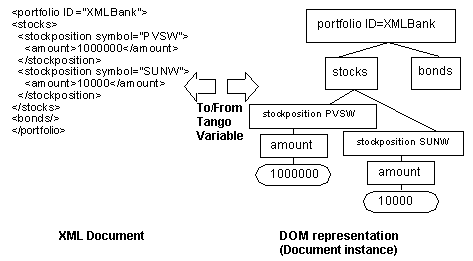
To manipulate XML in Tango, the XML must be converted to a DOM representation. This is generally done by using the <@ASSIGN> meta tag or Assign action in conjunction with the <@DOM> meta tag or with the use of the <@DOMINSERT> tag. The following creates a document instance in the myDom variable in local scope:
<@ASSIGN NAME="myDom"
SCOPE="local"
VALUE="<@DOM VALUE='<portfolio ID="XMLBank">
<stocks>
<stockposition symbol="PVSW">
<amount>1000000</amount>
</stockposition>
<stockposition symbol="SUNW">
<amount>10000</amount>
</stockposition>
</stocks>
<bonds/>
</portfolio>'>">
The XML document instance can then be manipulated by Tango meta tags. For example, using the above representation, the following meta tag deletes all <STOCKPOSITION> elements that have the attribute name SYMBOL with the attribute value SUNW (in this case, there is only one):
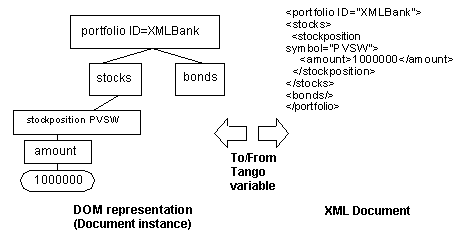
<@DOMDELETE OBJECT="myDom" ELEMENT="descendant(all,STOCKPOSITION,symbol,SUNW)">
All sub-elements and data of this element are also deleted. When the XML is returned within a Tango application (for example, with the <@VAR> meta tag), the document instance is saved out as XML.
[back to top] XPointer Syntax
The syntax is a stripped-down version of that proposed by a W3C Working Group. See www.w3.org/ TR/WD-xptr
XPointer syntax is used by the various <@DOM...> and <@ELEMENT...> meta tags to point at one or more elements in the document instance. In general, an XPointer is a series of terms, linked together by a period, that navigate to a particular element (or elements). For example:
The pointer is a mixture of absolute and relative terms, where absolute terms refer to a specific element, and relative terms refer to an element by way of its relation to another element. The following pointer terms are implemented in Tango 2000:
- root()
- id(idvalue)
- child(number or all,nodetype,attribname,attribvalue)
- descendant(number or all,nodetype,attribname,attribvalue)
Additionally, for the child and descendant terms, only the #element node type, and specific element names, are supported.
Root
If an XPointer begins with root(), the location source is the root element of the containing resource. If an XPointer omits any leading absolute location term, it is assumed to have a leading root() absolute location term.
ID
If an XPointer term is of the form id(Name), the location source (the point from which that XPointer starts in the DOM tree) is the element in the containing resource (in this case, all or part of the DOM tree) with an attribute having a declared type of id and a value matching the given Name.
For example, the location term id(a27) chooses the necessarily unique element of the containing resource which has an attribute declared to be of type id whose value is a27.
Child
Identifies direct child nodes of the location source. Child nodes are nodes that are exactly one step downwards from a node.
Descendant
The descendant keyword selects a node of the specified type anywhere inside the location source, either directly or indirectly nested.
The descendant location term looks down through trees of subelements in order to end at the node type requested. The search for matching node types occurs in the same order that the start-tags of elements occur in the XML data stream: the first child of the location source is tested first, then (if it is an element) that element's first child, and so on. In formal terms, this is a depth-first traversal.
Terms of Child or Descendant
The following terms can be used with the child and descendant keywords:
- number or all
For a positive number n, the nth of the candidate locations is identified. If the instance value all is given, then all the candidate locations are selected. The following example identifies the fifth child element:
- nodetype
The node type may be specified by one of the following values:
- Name
Selects a particular XML element type; only elements of the specified type will count as candidates. For example, the following identifies the 29th paragraph of the fourth sub-division of the third major division of the location source:
- #element
Identifies XML elements. If no Name is specified, #element is the default.
- attribname, attribvalue
The attribname and attribvalue arguments are used to provide attribute names and values to use in selecting among candidate elements. The attribvalue argument is always case-sensitive.
Attribute names may be specified as "*" in location terms in the (unlikely) event that an attribute value constitutes a constraint regardless of what attribute name it is a value for.
For example, the following location term selects the first child of the location source for which the attribute TARGET has a value:
The following XPointer chooses an element using the N attribute:
child(1,#element,N,2).(1,#element,N,1)
Beginning at the location source, the first child (whatever element type it is) with an N attribute having the value 2 is chosen; then that element's first child element having the value 1 for the same attribute is chosen.
A child with an invalid specification (for example, out-of-range number) returns an error from Tango Server.
- Name
Example
Given the following document instance:
<portfolio ID="XMLBank">
<stocks>
<stockposition symbol="PVSW">
<amount>1000000</amount>
</stockposition>
<stockposition symbol="MSFT">
<amount>200000</amount>
</stockposition>
<stockposition symbol="SUNW">
<amount>10000</amount>
</stockposition>
</stocks>
<bonds/>
<cash>
<cad/>
<usd>
<amount>100000</amount>
</usd>
</cash>
</portfolio>
- root() returns the portfolio element, as would id(XMLBank).
- root().child(1).child(2) returns the second stockposition element (symbol attribute and MSFT attribute value), as does root().child(1).child(1,*,symbol,MSFT).
- descendant(3,amount) goes right to the third amount element in the tree, without having to specify its parentage. descendant(all,stockposition) returns a list of the three stockposition elements.
- child(4) returns nothing, because, while an omitted initial absolute term always implicitly adds root(), there is no fourth child of the portfolio element.
[back to top] Manipulating a Document Instance
This section gives details on creating and manipulating a document instance.
Creating a Document Instance
The first step in manipulating a document instance is to create one from the XML.
To create a document instance
- Use the <@DOM> meta tag in conjunction with an Assign action or the <@ASSIGN> meta tag.
- Use the <@DOMINSERT> meta tag, specifying a new variable (and optionally a scope specification). The XML to be inserted is found between the start- and end-tags.
The following examples create a document instance in the variable named myDom in application scope. If that variable already exists in that scope, the value of that variable is replaced:
<@ASSIGN NAME="myDom" SCOPE=application VALUE="<@DOM VALUE='<XML><DIV ID=1><P>This is an example of a structured document.</P></DIV><DIV ID=2><P>Here is some more text.</P><P>Here is an additional paragraph of text.</P></DIV></XML>'>">
<@DOMINSERT OBJECT="myDom"
SCOPE=application>
<XML>
<DIV ID="1">
<P>This is an example of a structured document.</P>
</DIV>
<DIV ID="2">
<P>Here is some more text.</P>
<P>Here is an additional paragraph of text.</P>
</DIV>
</XML>
</@DOMINSERT>
There are also several other different ways you can create a document instance from XML, but they all involve variations on the basic use of <@DOM> and <@ASSIGN>, or <@DOMINSERT>. For example, you can read in an XML file using <@INCLUDE>, and create a document instance with <@DOM> or <@DOMINSERT>:
<@ASSIGN NAME=myXML VALUE=<@DOM VALUE=<@INCLUDE FILE=fred.xml>>>
<@DOMINSERT OBJECT=myXML>
<@INCLUDE FILE=fred.xml>
</@DOMINSERT>
Using DOM Meta Tags
You manipulate the XML document by using the DOM meta tags to point to the element(s) you want to delete, replace, or insert into. For inserting and replacing meta tags, the XML to be inserted or replaced is found between start- and end-tags of the DOM meta tag.
To insert XML into a document instance
For example, using the above myDom document instance, the following inserts an additional paragraph between the two <P> elements in the second <DIV> element:
<@DOMINSERT OBJECT="myDom"
SCOPE="application" ELEMENT="root().child(2).child(1)"
POSITION="BEFORE">
<P>Here is an additional paragraph of text.</P>
</@DOMINSERT>
To delete XML from a document instance
For example, using the above myDom document instance, the following deletes the second paragraph in the second <DIV> element.
<@DOMDELETE OBJECT="myDom" SCOPE="application" ELEMENT="root().child(2).child(2)">
To replace XML in a document instance
For example, using the above myDom document instance, the following replaces the first <DIV> element (the one with the attribute ID=1).
<@DOMREPLACE OBJECT="myDom"
SCOPE="application"
ELEMENT="root().descendant(all,DIV,ID,1)">
<DIV ID="1"><P>Here is a replacement paragraph inside a
replacement DIV.</P>
</DIV>
</@DOMREPLACE>
[back to top] Returning XML in Tango Applications
You can use a variety of Tango meta tags to return XML from a document instance. You can return all or part of the document instance using <@VAR>, return particular element names with <@ELEMENTNAME>, return element values with <@ELEMENTVALUE>, return attribute values with <@ELEMENTATTRIBUTE>, or return all attributes of one or more elements with <@ELEMENTATTRIBUTES>.
When returning values, you can select whether you want to return the value as text or as an array. By default, multiple values returned by the <@ELEMENT...> meta tags are returned as an array, and single values are returned as text.
If the ELEMENT attribute of any of the XML-returning meta tags is omitted, the root element of the document instance is assumed.
The following examples assume there is a document instance variable called myDom which contains a DOM representation of the following XML:
<XML>
<DIV ID="1" CLASS="normal">
<P>This is an example of a structured document.</P>
</DIV>
<DIV ID="2" CLASS="urgent">
<P>Here is some more text.</P>
<P>Here is an additional paragraph of text.</P>
</DIV>
</XML>
Using <@VAR> and <@ASSIGN> With DOM
To return the entire or part of a document instance
A document instance is returned by <@VAR> as XML with no conversion of characters to HTML entities if the ENCODING attribute is not present. No conversion occurs even when XML is placed in HTML (for example, to be displayed as a Web page). All other ENCODING attribute settings function normally.
 Note:
Note:
The use of <@VAR> with XML when no ENCODING attribute is specified differs from returning other types of variables—text and arrays—into HTML. The default behavior of <@VAR> is to return variables as encoded for HTML, so that the returned value displays literally in the HTML (for example, “<” and “>” characters are encoded as their HTML entity definitions: < and >). The lack of encoding when returning document instances reflects the fact that XML is normally intended as instructions to the client (like HTML), generally not as data to be displayed.
In order to display the XML in its encoded form--for example, for display in a Web browser--you can use the ENCODING=MULTILINE attribute when using <@VAR>, which converts the appropriate text to HTML entities but also adds a <BR> HTML tag to the end of each line. You can also display encoded XML by first assigning the XML text to a variable (using the TYPE=TEXT attribute, which forces XML to be returned, not a document instance), and then returning the value of that variable in the HTML. The default encoding of variables returned with <@VAR> then takes place, for example:
<@ASSIGN tempXML <@VAR myDOM
TYPE=TEXT>>
<@VAR tempXML>
The XML is returned with the appropriate text converted to HTML entities.
If you want to return part of the document instance, you can do so by using the ELEMENT attribute of the <@VAR> meta tag. This is a pointer to the element that you want to return. All sub-elements and values within that sub-element are returned as well.
For example, the following returns the second <DIV> element from the above document instance, all sub-elements, and data in those elements:
<@VAR NAME="myDom" ELEMENT="root().child(2)">
<DIV ID="2"
CLASS="urgent">
<P>Here is some more text.</P>
<P>Here is an additional paragraph of text.</P>
</DIV>
Copying all or part of a document instance to another variable
There are two possible cases: where the ELEMENT attribute of <@VAR> points at a single element or at multiple elements:
- When the ELEMENT attribute of
<@VAR> points at a single element, the element and its
children are copied into the variable defined by the <@ASSIGN>
meta tag.
The following example assigns the second <DIV> element from the above document instance, all sub-elements, and data in those elements to a new variable in user scope called newDom:
<@ASSIGN NAME="newDom" SCOPE="user" VALUE='<@VAR NAME="myDom" ELEMENT="root().child(2)">'>
- When the ELEMENT attribute of
<@VAR> points at multiple elements, the elements and
their children are copied into the variable defined by the
<@ASSIGN> meta tag; however, because a document must have a
single root element, a root element called <root> is
automatically created as the parent of the copied elements and the root of the
document instance.
The following example assigns all the <P> elements in the myDom variable to a new variable in local scope called PDOM:
<@ASSIGN NAME="PDOM" SCOPE="local" VALUE="<@VAR OBJECT='myPortfolio' ELEMENT='descendant(all,P)'>">
This results in the following document instance in the PDOM variable:
<root>
<P>This is an example of a structured document.
</P>
<P>Here is some more text.</P>
<P>Here is an additional paragraph of text.</P>
</root>
Using <@ELEMENT...> Meta Tags With DOM
All of the <@ELEMENT...> meta tags can return either the text representation of an array (TYPE attribute set to TEXT), or an actual array (TYPE attribute set to ARRAY). However, when an array is returned in Results HTML, it is always returned as an HTML table, whether the TYPE attribute of the <@ELEMENT...> meta tags is set to TEXT or ARRAY.
For more information, see "Arrays".
When an array is referenced within a variable assignment, setting the TYPE attribute to TEXT returns the HTML table; setting the type attribute to ARRAY or not putting the attribute in the meta tag (the default) copies the array or part of the array, and the array is not converted to an HTML representation.
To return one or more element names
For example, the following returns the name of the element that is being pointed to from the above document instance:
<@ELEMENTNAME OBJECT="myDom" ELEMENT="root().child(2)">
The following example returns two element names as an array:
<@ELEMENTNAME OBJECT="myDom" ELEMENT="root().child(all)">
To return one or more attribute values
For example, the following returns the value of the attribute named ID in the element that is being pointed to from the above document instance:
<@ELEMENTATTRIBUTE OBJECT="myDom" ATTRIBUTE="ID" ELEMENT="root().child(2)">
The following example returns two attribute values as an array:
<@ELEMENTATTRIBUTE OBJECT="myDom" ATTRIBUTE="ID" ELEMENT="root().child(all)">
To return all attribute values of an element or elements
This meta tag returns a one-dimensional array if you are pointing at one element, and a two-dimensional array if you are pointing at multiple elements.
For example, the following returns the attribute names and values of the elements that are being pointed to from the above document instance. Each element pointed to returns a row. The returned value is a two-dimensional array:
<@ELEMENTATTRIBUTES OBJECT="myDom" ELEMENT="root().child(all)">
Row 0 (zero) of the array contains the attribute name for each column (in this case, ID and CLASS, respectively).
To return one or more element values
For example, the following returns the value of the element that is being pointed to from the above document instance:
<@ELEMENTVALUE OBJECT="myDom" ELEMENT="root().child(1).child(1)">
This is an example of a structured document.
The following example returns the element values of the elements that are being pointed to from the above document instance. The returned value is a one-dimensional array:
<@ELEMENTVALUE OBJECT="myDom" ELEMENT="root().child(2).child(all)">
[back to top] Applications of DOM
DOM allows you to parse XML. Many different standards are written in XML, and the ability of Tango to manipulate structured data enables you to read, modify, and write XML for a variety of purposes.
This section discusses some of the uses of the Document Object Model, including the building up of complex data structures in application files, the separation of presentation and business logic, and reading and writing Tango application files (which are in XML format).
Creating Complex Data Structures
Using DOM, you can build up complex data structures in document instances with data drawn from a variety of sources. This data can then be returned to the user using the DOM meta tags as XML, HTML, or text, in a variety of complex ways.
The steps to creating and using complex data structures are:
- Decide on a structure for the data.
In order for a complex structure to be created, there has to be agreement on some sort of document type definition. This may not be formally specified as a DTD, but the general tree structure, elements, attributes, and their ordering should be clear.
- Get the data from whatever source (data sources, external actions, objects, and so on).
- Use Tango variables to save the intermediate results. Generally, results from an action are returned with the resultSet array. Use this array or portions of this array to create different Tango variables or arrays that save the relevant information from a database action.
For more information, see "Using DOM Meta Tags".
For more information, see "Returning XML in Tango Applications".
Example
Creation of a complex user portfolio of stocks, bonds, cash, and other financial assets may require a variety of searches into various financial companies' data sources, using data returned from an object that retrieves financial data, using external actions to return data from a script that reads a custom financial format, and so on. Creating a document type definition and using document instances is a way to organize all this complex data so that it can be returned using DOM meta tags.
The tree structure of a portfolio could look something like the following:
<portfolio ID="">
<stocks>
<stockposition symbol=""></stockposition>
</stocks>
<bonds>
</bonds>
<mutualfunds>
<mfposition symbol=""></mfposition>
</mutualfunds>
<cash>
<cad></cad>
<usd></usd>
</cash>
</portfolio>
While the stocks and bond data could be retrieved from two different data sources, the cash and mutual funds data require, respectively, a call to an object and one to an external script. The data returned from all these different types could be easily inserted into the data structure with the use of DOM meta tags.
Assuming that the results from a search on stocks held by a particular user were returned and copied from the resultSet of that action into a mystocks array, the following meta tags return values by looping through an array where the stock symbol is in column one, and the number of shares being held is in column two, and inserts those values into a stock and amount element within the Portfolio document instance:
<@DOMINSERT OBJECT="Portfolio"
ELEMENT="root().child(stocks)">
<@FOR STOP="<@NUMROWS ARRAY='mystocks'>">
<stockposition symbol="<@VAR
NAME='mystocks[<@CURROW>,1]'">>
<amount><@VAR NAME="mystocks[<@CURROW>,2]>"
</amount>
</stockposition>
</@FOR>
</@DOMINSERT>
To return values from the document instance, use the ELEMENT meta tags which refer to various element or attribute values in the document instance.
For example, to return an array of all the stock symbols in the portfolio, use the following meta tag:
<@ELEMENTATTRIBUTE OBJECT="Portfolio" NAME="symbol" ELEMENT="root().descendants(all)">
Separating Business and Presentation Logic
Tango's action based metaphor allows you to build up returned HTML on Web pages, action by action, in a variety of complex ways. This model is a good one for many Web applications. However, it may sometimes be useful in a Tango solution to think about separating business and presentation logic.
The business logic of a Tango application is the various actions and calls that retrieve information. The presentation logic of a Tango application is how Web pages are shown to the user; that is, the path that the user goes through as they use a Web site.
These two different components of a Tango application can be used to create complex solutions in Tango. Separating business from presentation logic allows changes in the method of processing information, without affecting the method of presenting information, and is especially useful in complex projects. For example, one set of developers could be working on the appearance of the Web pages with proper formatting and design; the other developers could be working on the creation of the data structures to be returned.
Tango provides you with a Presentation action that can assist with the separation between presentation and business logic.
While it is not necessary to use XML in the form of Tango variables and document instances in order to separate business logic from presentation logic, it can be of enormous assistance because using DOM meta tags can easily create complex data structures. The document instance can be seen as an intermediate representation of results from business logic, which can then be translated into HTML for presentation. This is sometimes called the Presentation Document Object Model, or PDOM.
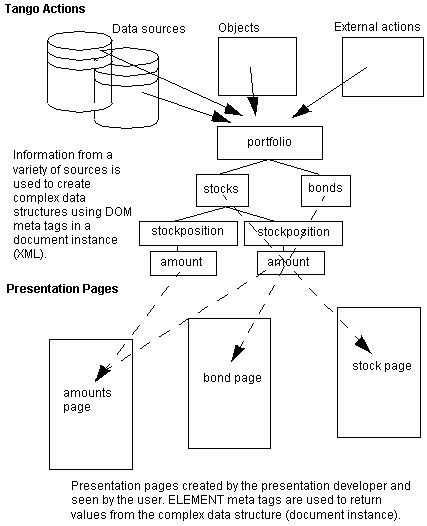
The previous section of this chapter on complex data structures shows examples of building up a complex document instance using DOM meta tags and retrieving values from that document instance using ELEMENT meta tags. The separation of business and presentation logic means that the DOM meta tags would be found in the Results HTML of the various actions, in order to build the structure, and the <@ELEMENT...> meta tags would be used on the presentation pages to retrieve information from the structure.
The following diagram shows a representation of the data flow between business and presentation logic:
Reading and Writing Tango Application Files
Tango 2000 application files are in XML format. This means that you can read these files into a Tango variable, creating a document instance. Once the XML has been saved as a Tango variable, you can then perform a variety of actions on the document instance: extract information from the document instance, make changes and write out the file, and so on.
For more information, see the DTD for Tango, in the XML folder under the Tango folder. Also see "XML Format".
For example, the following meta tags read in a Tango 2000 application file, turning the XML into a document instance:
<@ASSIGN NAME="myTaf" VALUE=<@DOM VALUE=<@INCLUDE FILE="Login.taf">>>
<@ASSIGN NAME="myTaf"
VALUE="<@INCLUDE FILE=Login.taf>">
<@DOMINSERT OBJECT="myDOM">
@@myTAF
</@DOMINSERT>
The following meta tags return the deployment data sources in the form of an array from the Login.taf file (the DeploymentDSID attribute lists the name of the deployment data sources for all database-accessing actions):
<@ELEMENTATTRIBUTE OBJECT="myTaf" NAME="DeploymentDSID" ELEMENT="root().descendants(all)">
You can create Tango application files that generate or modify Tango files, using the DTD for Tango application files and Tango class files. This is useful for advanced Tango developers who want to automate the process of generating application files.
Caution: Modifying Tango
application files or Tango class files outside of Tango Editor is recommended
for advanced users only. Even advanced users should make backups of any files
that are to be modified.
Other Uses
XML has many uses. The ability of Tango to create and manipulate document instances enables you to do the following:
- Receive, modify, and send Electronic Data Interchange data in XML format. For more information on EDI and XML, see:
- Generate XML for presentation on the Internet through the use of Web browsers or plug-ins to Web browsers that can parse and render dialects of XML:
- generate equations using the Math Markup Language (MathML). For more information on MathML, see:
- author multimedia presentations in Tango using the Synchronized Multimedia Integration Language (SMIL). For more information on SMIL, see:
These and other uses of XML can be explored from the World Wide Web Consortium's page of XML activity, at: