Using Control Actions
Branch, If, Loop, Break, and Return Actions
Tango application files can contain control actions that control the execution of other actions in the file.
This chapter covers the setup and operation of the following actions.
- The Branch action causes a jump to a designated action or group.
- The If action evaluates an expression, and based on the result of that expression, affects the control flow of the file.
- The Loop action repeats a set of contained actions a given number of times or while an expression evaluates to true.
- The Break action terminates processing in the loop.
- The Return action ends execution of the application file and returns any accumulated Results HTML to the Web browser. It can also return to another application file.
![[top]](arrow.gif) [back to top]
[back to top] Jumping to a Designated Action (Branch Action)
The Branch action causes a jump to a designated action or to an action group.
For more information, see "Branching to Other Application Files".
You can set the Branch action to jump to an action in the same application file, or to an action in another application file. If the Branch action jumps to an action in another application file, you can choose whether to return to the previous application file when a Return action is encountered.
Branch Action Destination Rules
There are rules governing where a Branch action can jump to. If the rules are violated, Tango Server returns an error. The rules are dependent on what kind of file you use and whether you are branching to a different file.
Different Application File
When branching to a different application file, a Branch action can only branch to an action at the outermost level.
Same Application File
When branching to the same application file, a Branch action can branch to:
- any action at the outermost level.
- any action at the same level in the same block of Tango actions.
- any action that is an ancestor (for example, a parent or a parent's parent).
- any action that is a first-level child of an ancestor.
A Branch action cannot branch to:
- Else If or Else actions.
- any action that is its descendent (for example, a child or a child's child).
- any action that is a descendent of an action at the same level as this Branch action.
Tango Class File
When using a Tango class file, the rules for Branch actions are similar to those for branching within the same application file. There is an additional rule: Branch actions in a Tango class file cannot branch outside the current method.
Examples
Consider the following partial application file:
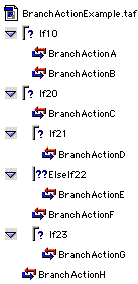
- BranchActionC can branch to BranchActionF.
Reason: The actions are in the same action block and at the same level.
BranchActionD can branch to BranchActionC.
Reason: BranchActionC is the first-level child of an ancestor (If20) of BranchActionD.
BranchActionB cannot branch to BranchActionE.
Reason: Incorrect relationship. BranchActionE is a descendent of ElseIf22, which is at the same level as BranchActionB.
BranchActionC cannot branch to BranchActionG.
Reason: Incorrect relationship. BranchActionG is a descendent of If23, which is at the same level as BranchActionC.
BranchActionC cannot branch to ElseIf22.
Reason: Even though ElseIf22 is the first-level child of an ancestor (If20) of BranchActionC, this branch is not allowed because branching to an Else If action is invalid.
Branching to Other Application Files
Branch and Return
When a Branch action in one application file branches to another application file with the Return to next action after branch option selected, it returns to the previous application file when it encounters a Return action. However, there are certain circumstances under which the Branch action never returns, even when the Return option is selected.
If a Branch action with the Return option checked branches to another application file, and then encounters a Branch action with the Return option not checked, the first Branch action never returns to the first application file, even though it encounters a Return action. That is, the lack of a Return option in the second Branch action takes precedence.
Setting Up a Branch Action
When you drag the Branch action icon from the Actions palette into an application file, the Branch action editing window appears.
To set up a Branch action
 Note: If you are using the
Branch action in a Tango class file method, skip to step 4. Only branches
within the method are allowed; the Application File field and the "Path to
target application file on Server" section are disabled.
Note: If you are using the
Branch action in a Tango class file method, skip to step 4. Only branches
within the method are allowed; the Application File field and the "Path to
target application file on Server" section are disabled.
From the Application File pop-up menu, select the file you want the Branch action to jump to, by doing one of the following:
Accept the default (that is, select the current file); go to step 3.
If the current file is part of a project, the pop-up menu also shows the other files in the project; select the file you want.
If you want to select an application file elsewhere from your hard drive, click Choose.
A standard file selection dialog box appears; select an application file.
If you select an application file that is not the current file, the Action list changes to show the actions in the selected file. The Path to target TAF on Server section is also enabled to allow you to specify the path to the application file.
Select the Same as source TAF option (the default) to cause Tango Server to always look in the current file's folder.
Specify in the Other field the path to the folder you want, which causes Tango Server to look for the application file in that location. This path is specified relative to the Web Server's root folder.
Check the Return to next action after branch option if you want execution to continue with the action following the Branch action when a Return action is encountered in the destination.
Uncheck this option if you want execution to end when a Return action is encountered in the destination.
The Branch icon in the Action list of the Tango application file changes to reflect the change in the action's behavior.
In the Action list, select the action you want the Branch action to jump to.
Close the Branch action editing window.
The destination action for a Branch must be valid according to the rules on Branch Action Destination Rules; otherwise, Tango Server returns an error.
Executing a Branch Action
When Tango Server executes a Branch action, it jumps to the designated action. If the Return to next action after branch option is selected, Tango returns to the action following the Branch action when a Return action is encountered.
Branch Action Destination Navigation
You can navigate from a Branch action to its destination action with the Go To Destination contextual menu command.
When you have selected a destination for a Branch action, control+clicking the Branch action allows you to select the Go To Destination command from the contextual menu that appears. The name of the target action appears beside Go To Destination; the path to the file also appears if the action is in a different application file than the Branch action.
To navigate to a Branch action destination
-
The Go To Destination command appears in the contextual menu, along with the name of the destination action.
Choose Go To Destination from the contextual menu that appears.
Tango Editor automatically selects the designated action if it is in the same application file. If the designated action is in a different application file, Tango opens the application file and selects the target action.
The Go To Destination contextual menu item is available only when you control+click either the Branch action or the Branch action editing window. A destination action must be designated, or Go To Destination is disabled.
[back to top] Conditional Action Execution (If Action)
The If action is associated with an expression. During execution, Tango Server evaluates whether the conditions stated in the expression are met. If the conditions are met (true), Tango Server proceeds with a sequence of actions in the application file; if the conditions are not met (false), Tango Server proceeds with a different sequence of actions in the application file.
Example: Sports Fan Web Site
Consider a Tango application file executing on a Web site for sports fans. If the user chooses to display information on hockey, the variable sport is set with the value hockey. Then, an If action evaluates the sport variable, and, if the variable has the correct value (in this case, hockey), Tango Server searches for and displays hockey information. If the user chooses to display information on football (the variable sport is set with the value football), an ElseIf action evaluates the sport variable, and, if the variable has the correct value (in this case, football), Tango Server searches for and displays football statistics. Tango Server also displays general sports news when this application is executed. The following is taken from an application file designed for our sports fan Web site:
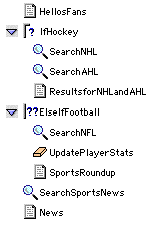
We see that with the use of If and ElseIf actions (conditional actions), different sets of actions can be executed during the execution of an application file.
General Forms of If Actions
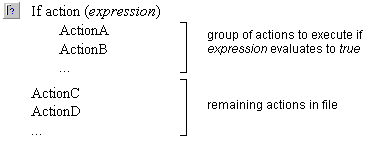
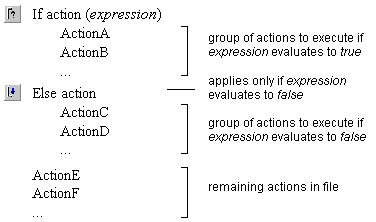
The If action has two related actions: Else If and Else. These actions are often used together: an If action followed by one or more Else If actions and an Else action. However, an If action can exist without Else If actions; it can also exist without an Else action.
The general forms of If actions are as follows:
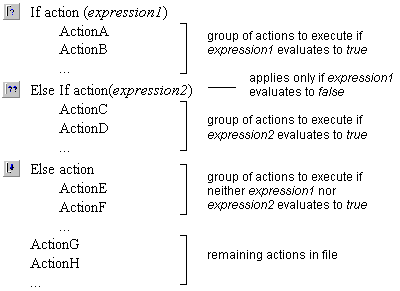
Nested If Actions
If actions may be nested; that is, the indented actions under an If, Else If, or Else action may contain other If, Else If or Else actions. You can have multiple levels of nesting.
Performing Operations on If Actions
Working with If actions is similar to working with grouped actions. Each If, Else If, or Else action--together with the indented actions under it--acts like a group.
For information on the operations you can perform on groups, see "Working With Action Groups".
Setting Up an If Action
When you drag the If or Else If action icon from the Actions bar into an application file, the If action editing window appears.
By default, the If action editing window appears in its basic view, allowing you to create expressions quickly. An empty parameter row appears in the dialog box, ready for you to edit.
Note: Dragging the Else action
icon into an application file does not open any action editing window. However,
if you double-click an Else action in an application file, the action editing
window opens so you can change the Else action to an If or Else If action.
An advanced view is also available that gives you more flexibility than the basic view when specifying evaluation expressions.
You change the type of If action by selecting If, Else If, or Else from the Action pop-up menu.
The If and Else If action editing windows are basically the same, and you enter evaluation expressions the same way for both of them. When you select Else, however, only the Action pop-up menu is active. This allows you to change to another If action type.
Note: If you change back to an
If or Else If action type from an Else action type before closing the action
editing window, any If or Else If expressions you specified previously are
retained.
Basic View
The basic view consists of a parameter list, which works as follows:
Each row in this list contains a parameter; it allows two values to be compared, using an operator.
All the parameters in this list are connected together, using logical operators.
All the parameters together constitute a single expression that Tango Server evaluates.
If the expression evaluates to "1" or "true", it is considered true; otherwise, it is considered false.
To specify values for the basic view parameters
Logical Operator. The first field in the parameter list is the logical operator. There are two logical operators: and and or.
Click the parameter row, then click the field to display a pop-up menu to choose a logical operator. The logical operator is used when the expression includes more than one row; it specifies the relationship between the two rows.
Value. Enter the values to use in the parameter. Do not add quotation marks around the values.
If you are using the =, !=, >, <, >=, or <= operator (see the description of Oper. on Oper), enter the two values you want to compare in the two Value columns respectively.
If you are using the Is Empty or Is Not Empty operator (see the description of Oper. on Oper), enter the single value that you want to compare in the left Value column.
The values can contain any value-returning Tango meta tags, which are substituted when Tango Server executes the action.
For more information about inserting meta tags in entry fields, see "Inserting Meta Tags".
You can also use the Insert Meta Tag command to enter many of the commonly-used meta tags.
To insert a meta tag, either click the field and choose Insert Meta Tag from the Edit menu, or control+click the field and choose Insert Meta Tag from the contextual menu that appears.
Oper. Specify the operator to use to compare the two values specified on the same row.
Click the parameter row, then click the field to display a pop-up menu to choose an operator.
Operator
Meaning
To add a new parameter row
 +I.
+I.To delete a parameter row
Advanced View
When you click Advanced in the basic view, the following happens:
The window expands to show a text area where you can enter text-based expressions.
The parameters in the basic list are automatically converted to an equivalent text expression in the advanced text area.
There are some important differences between the basic view and the advanced view:
For more information, see "<@CALC>". of the Meta Tags and Configuration Variables manual.
The expression entered here takes the same form as expressions specified for the <@CALC> meta tag.
If the expression in the advanced text area evaluates to "1" or "true", the expression is considered true; otherwise, it is considered false.
Any editing you do in the advanced text area supersedes the parameters in the basic view list area.
If you return to the basic view from the advanced view, any editing you do in the advanced text area is lost.
Tango can take the parameters appearing in the basic view and regenerate the equivalent text-based expression in the advanced view.
To regenerate the parameters from the basic view
From the contextual menu that appears, choose Insert Expression As Above.
The text-based expression appears in the advanced text area.
 Tip: You can also drag text
from the Snippets Workspace to this text area.
Tip: You can also drag text
from the Snippets Workspace to this text area.
To return to the basic view
 Caution: If you changed the
expression in the advanced view, your changes are lost when you return to the
basic view. An alert box asks if you want to continue.
Caution: If you changed the
expression in the advanced view, your changes are lost when you return to the
basic view. An alert box asks if you want to continue.
[back to top] Repeating Actions (Loop Actions)
A Loop action repeats the execution of a set of actions for a given number of times or while an expression evaluates to true. In an application file, the actions to be repeated in the loop are indented under the Loop action.
Example: Music Store
Consider an online music store. It allows customers to search for their favorite recordings and artists. As an additional service, this store also searches other sites for recordings and artists that it does not have in stock. A Loop action can be set up such that Tango Server goes through the sites that this store has an agreement with. For each of these sites, Tango Server searches for recordings and artists, and then updates the results and displays them to the customer. This process continues until Tango Server comes to the end of the sites. The loop ends at this point, and Tango Server proceeds to the next action outside the loop, which is to present the order information.
The following is taken from an application file designed for our music store:
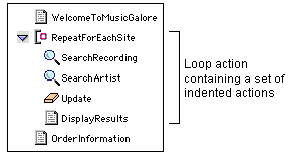
General Forms of Loop Actions
There are three kinds of Loop actions:
-
See "Using the Objects Loop Action" for details.
While Loop
The While Loop takes the following general form:
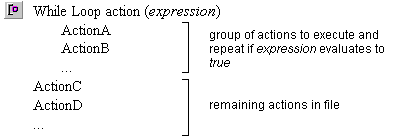
A While Loop is associated with an expression. If this expression evaluates to true, Tango Server executes the indented actions listed under the While Loop action. (In this example, these indented actions include ActionA and ActionB.) When all the indented actions are executed, the expression is evaluated again. Tango Server repeats the indented actions as long as the expression evaluates to true. When the expression evaluates to false, Tango Server proceeds to the next action at the same level as the While Loop action. (In this example, it is ActionC.)
For Loop
A For Loop action takes the following general form:
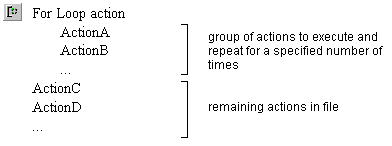
A For Loop specifies that a group of indented actions listed under the For Loop is to be executed and repeated a number of times. (In this example, these indented actions include ActionA and ActionB.) After repeating so many times, Tango Server proceeds to the next action at the same level as the For Loop action. (In this example, it is ActionC.)
Tango also includes a Break action you can use to exit a Loop action before the loop conditions for termination are met.
Nested Loop Actions
Loop actions may be nested; that is, the indented actions under a While Loop or For Loop action may contain other While Loop or For Loop actions. You can have multiple levels of nesting.
Setting Up Loop Actions
While Loop
A While Loop action executes and repeats the actions in the loop (shown as indented actions) while an expression evaluates to true.
When you drag the While Loop action icon from the Actions bar into an application file, the While Loop action editing window appears in its basic view, allowing you to create evaluation expressions quickly.
In order for the While Loop to work properly, you must avoid the following pitfalls:
-
If the expression you specify does not evaluate to true when Tango first executes the While Loop action, the indented actions under it are never executed.
-
Make sure that at least one value being compared in the expression is being changed inside the loop. If this is not the case, a "true" evaluation causes Tango to execute the enclosed actions forever.
Be careful when constructing a While Loop expression. You want to ensure that it eventually evaluates to false.
The basic view for a While Loop action is similar to the basic view for If and Else If actions.
The While Loop action editing window also has an advanced view that gives you more flexibility than the basic view when constructing evaluation expressions. For example, you can use parentheses to control the evaluation order.
This view is similar to the advanced view for If and Else If actions.
For Loop
A For Loop action executes and repeats the actions in the loop (shown as indented actions) for a given number of times.
When you drag the For Loop action icon from the Actions palette into an application file, the For Loop action editing window appears.
Set the parameters in a For Loop action as follows:
Counter Variable (local). The name of a local variable to use to access the current value of the counter.
Note: This parameter is
optional. It is not required to use the action.
Count. The direction of the counting from the starting value to the ending value. You must specify this parameter so Tango can increment or decrement the counter properly. Choose Up or Down from the pop-up menu to set the counter to increment or decrement, respectively. The default is Up. When Down is selected, the Increment By field name becomes Decrement By.
Increment/Decrement By. The value the counter increments or decrements by on each loop.
Tip: All For Loop action
fields, except for the Count field, support Tango meta tags.
Executing Loop Actions
The "General Forms of Loop Actions" section explains the basics of how Tango Server executes the While Loop and the For Loop. This section provides some additional information.
While Loop
If Tango Server finds the expression invalid, it returns a runtime error.
Tango Server evaluates any meta tags in the expression on each pass through the loop.
For Loop
If Start Value is a meta tag, Tango Server evaluates it prior to the first pass through the loop.
If the To and Increment/Decrement By fields contain meta tags, Tango Server evaluates them on each pass through the loop.
Performing Operations on Loop Actions
Working with Loop actions is similar to working with grouped actions.
For information on the operations you can perform on grouped actions, see "Working With Action Groups".
[back to top] Exiting a Loop (Break Action)
The Break action prematurely terminates processing in a loop or group action. On termination, processing continues at the next action after the loop or group.
Drag the Break action icon from the Actions palette into a Loop or Group action at the point you want the loop or group to terminate.
On execution, the Break action terminates the loop, and processing continues at the next action after the loop.
Note: If you include a Break
action outside a loop or group, Tango Server generates a runtime error on
execution.
[back to top] Ending File Processing (Return Action)
The Return action ends application file processing and returns any accumulated Results HTML to the Web browser.
For more information, see "Jumping to a Designated Action (Branch Action)".
The exception to this is if the current execution flow is the result of a Branch that had its Return to next action after branch option set. In this case, the execution returns to the action following the Branch when a Return action is encountered.