Configuring the New Record Builder
Tango New Record Builder Options and Setup
The New Record Builder builds a series of actions that allows users to add a record to a database. For the new record, you specify the database columns the user can add data to and the result message to return after the record is added. Tango does the rest.
The topics covered in this chapter include:
- setting new record column options
- formatting the new record form
- customizing your form and creating result messages
- a summary of how to set column options.
![[top]](arrow.gif) [back to top]
[back to top] About the New Record Builder
You use the New Record Builder to build actions that, when Tango Server executes them, display a form allowing users to enter data for a new record and return a result message after the record is added to the database.
The user enters the values for the columns in the new record, and clicks Save to save the record. Tango Server saves the record to the data source and returns the HTML response you specified in the New Record Response HTML.
[back to top] Setting New Record Options
When you drag the New Record Builder icon from the Actions palette into an application file, the New Record Builder window appears.
All the options necessary for configuring the New Record Builder appear in its options window.
 Tip: You can save your Tango
Builder page formats to use for new tables you create in the Builders.
For more information, see "Page Format
Table Settings".
Tip: You can save your Tango
Builder page formats to use for new tables you create in the Builders.
For more information, see "Page Format
Table Settings".
Columns
The columns you include in this list are the columns the user assigns values to in the new record. To add columns to the list, drag them from the Data Sources Workspace. Columns appear in the format table_name.column_name. You can only add columns from one table. The order in which the columns appear in the Columns list determines their order on the resulting new record entry form.
The following table describes the operations you can perform on columns:
To... |
Do This... |
Select the columns and drag them to a different location in the list. |
|
Select the columns. Choose Clear from the Edit menu or press the delete key on the keyboard. |
|
Column Options
Use the Column Options area to configure each column appearing in the Columns list. You can specify how each column's entry field appears on the new record entry form and whether a value is required for it or not.
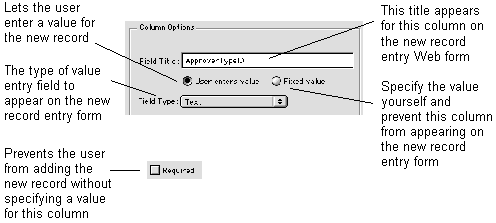
Field Title
In this field, set the title of the value entry field for the column as you want it to appear on the new record entry form.
User Enters Value
Select this option if you want the user to enter a value in an entry field on the new record entry form.
Field Type
To select a value entry field type for a column, select the column in the Columns list and select an item from the Field Type pop-up menu (Text, Pop-Up Menu, Selection List, Checkbox, or Radio Button).
A Field Properties dialog box appears, allowing you to specify properties for the field.
You can edit a field's properties at any time by clicking the Field Properties icon in the New Record Builder window or by choosing Field Properties from the Attributes menu.
For details on the different types of fields that can appear here (pop-up menu, selection list, checkbox, or radio button), see "Field Type".
The Field Properties dialog box for the specified type of field appears.
Fixed Value
If you select this option, no entry field appears on the new record entry form. The value you specify is used for every new record.
Using the Value pop-up menu, select one of the following options for a fixed value:
Value Entered. Use the text box provided to enter the value for the Field Title.
SQL Expression. The value returned by the SQL expression text entered is used as the value. The text entered is evaluated by the database, and the result is used as the column value in the new record.
 Note: For ODBC data sources,
you can enter ODBC scalar functions here.
Note: For ODBC data sources,
you can enter ODBC scalar functions here.
SQL Statement. The SQL statement entered is executed, the results are retrieved, and the first data item of the results is used as the column value in the new record. For example, if you enter:
SELECT (MAX (cust_num) +1) FROM customer
the largest customer number plus one is used as the value for the column in the new record.
Current Timestamp. The current timestamp (date and time combined) on the Tango Server computer is used as the value.
Current Date. The current date on the Tango Server computer is used as the value.
Current Time. The current time on the Tango Server computer is used as the value.
For more information on what the CGI parameters evaluate to, see "Assigning Variables With the Assign Action", and "<@CGIPARAM>" in the Meta Tags and Configuration Variables manual.
CGI Parameters. The rest of the fixed value options are referred to collectively as CGI parameters. They include Client Name, Client Password, Client Domain, Client IP Address, Client Browser, Server Address, Server Port, Referer Page URL, Method and Full Report. When you specify one of these parameters as the column value, the parameter value passed in when the user clicks the Save button is used.
Required
Select this column option to prevent a record from being added, unless the user enters a value. If the user tries to leave the value field empty, an error message is returned.
If you select Fixed Value for the column, the Required option is not available. It is also not available for columns configured to use the Checkbox field type. This is because a checkbox can have only two values: empty and the one you specify in the Field Properties Options dialog box. Making it required would mean the record could not be added unless the user checks the checkbox, in which case you could use the Fixed Value option for the column and have it not appear on the Web page.
Summary: Setting Column Options
The following table summarizes how to set column options for the New Record Builder:
[back to top] Formatting the New Record Form
Use the format options to determine the layout method to display the value entry fields and their titles.
To change the page format options of the new record form
The Page Format dialog box appears. This dialog box is identical to the one for the search Web page of the Search Builder. See Formatting the Search Web Page for details.
[back to top] Customizing Your Form and Result Messages
The Snippets Workspace includes the default builder HTML snippets described in this section. They include snippets for Form Header, Form Footer, and New Record Response.
Header, Footer, and New Record Response HTML
You use Header HTML and Footer HTML to customize the new record entry form by specifying HTML that is placed above and below the entry form.
The New Record Response HTML is returned after the user saves the new record.
The Snippets folder in the Snippets Workspace contains the names of all the columns in the table being inserted into. Dragging a column name to the HTML editing field causes an <@COLUMN> tag to be added to the HTML. When the application file is executed, the column's value in the new record is included at that location in the response.
To display values from the new record, Tango must be able to get those values from one of three places: the new record form submitted by the user, a fixed value you have specified, or from the database. If you include a column in the result message that does not appear in the Columns list of the New Record Builder window, Tango must do a search of the database to retrieve the new record after it is added.
To do so, Tango must have the value of the record's primary key column(s). This means the primary key column(s) must appear in the Columns list of the builder. Without this information, Tango Editor does not permit you to build the New Record actions.
To enter Header HTML, Footer HTML, or New Record Response HTML
If you want to include HTML other than the default snippets, enter it.
Changing Button Titles
The new record entry form contains two buttons at the bottom of your form:
To change button titles
Actions Built by the New Record Builder
The actions built by the New Record Builder appear in the application file window as follows:
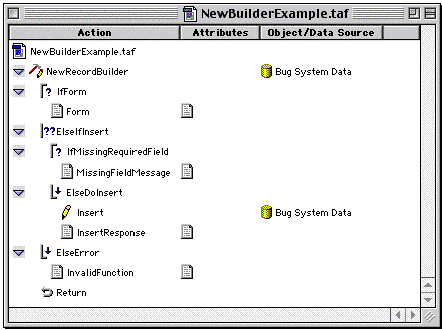
The following shows the actions resulting from the New Record Builder process and the conditions under which the actions are built:
- <@ARG _function> = nrform
- This section appears only if one or more user-enterable fields exist.
- Form
- <@ARG _function> = insert
- If no form is present, this is an If action named IfInsert.
- Insert
- If you selected SQL Statement for any column value, a Direct DBMS action (one for each) appears immediately before the Insert action.
- InsertResponse
- For information about the new record entry response, see"Header, Footer, and New Record Response HTML".
- Invalid Function
- The HTML for this action displays the following message:
- Error: Invalid Function
- An unknown function was specified.
This action ends execution of the application file and returns the accumulated Results HTML to the Web browser.
HTML Snippets
The Snippets Workspace contains a snippets folder named Builder Snippets, and a subfolder named New Record. The New Record folder contains snippets for the Form Header, Form Footer, and New Record Response.
The New Record Builder uses these snippets in the designated places as default values for the named attributes.