 Caution: If a custom meta tag
has the same name as a built-in Tango meta tag, the custom meta tag does not
work; the Tango meta tag takes precedence.
Caution: If a custom meta tag
has the same name as a built-in Tango meta tag, the custom meta tag does not
work; the Tango meta tag takes precedence. For information on objects, see Chapter 21 and Chapter 22 of the User's Guide. For information on Tango class files, see Chapter 23 of the User's Guide.
Tango allows the use of custom meta tags, which are user-defined Tango meta tags that map directly to any method call supported by Tango, and can be used to call Tango class files, COM objects, and JavaBeans from Tango application files and Tango class files.
Custom meta tags can apply to all of Tango Server (system scope) or be specific to an application (application scope). Custom meta tags can be shared with other developers by distributing the tag definition file and any objects called by the custom meta tag.
The following sections describe using custom meta tags, creating a file that defines one or several custom meta tags, and the process of installing custom meta tags.
Once a custom meta tag has been created and installed on your system, all a user needs to do is type in the custom meta tag with any required attributes in any place where meta tags can be specified. The object instance is created, and a method call to the specified object is made when Tango Server executes the file. There are some issues to be aware of when using custom meta tags, described in this section.
Required attributes of a custom meta tag must be specified when that custom meta tag is used; otherwise, Tango generates an error (naming the first missing attribute), and execution ends.
For more information, see Encoding Attribute and Format Attribute.
All custom tags have two standard attributes: FORMAT, and ENCODING. Returned values are encoded according to the ENCODING attribute, and formatting according to the FORMAT attribute, if either or both of these attributes is specified when the custom meta tag is used in an application file or class file.
Application-specific custom meta tags can share names with system scope custom meta tags, in which case the application scope tag is used. Within a particular scope--application or system--tag names must be unique; Tango generates a warning in the event log and uses the first tag when a duplicate name is encountered within a scope.
Caution: If a custom meta tag
has the same name as a built-in Tango meta tag, the custom meta tag does not
work; the Tango meta tag takes precedence.
All custom meta tags are "empty" tags; that is, custom meta tags can have attributes but not content, because they do not have start and end tags.
Tags can only call objects that are defined within the current tag definition file.
You define custom meta tags in tag definition files, which are XML files. These files must reside in a specific directory for system scope custom meta tags, and specific directories for application-specific custom meta tags (different directories for each application).
For more information, see customTagsPath.
The customTagsPath configuration variable, available in system and application scope, defines the path to the directories where tag definition files reside.
A tag definition specifies a custom tag and the object and method to call for the custom tag. A custom tag definition file contains one or more tag packages, which each contain at least one object specification and at least one tag definition. A tag package groups related tags and shares objects with other tag packages.
You define custom meta tags by creating tag definition files based on a specific XML document type definition (DTD) developed by Pervasive Software.
The format of the XML custom meta tag definition file is given by ctags.dtd, which resides in the XML directory under your Tango2000 directory.
 Note: XML is case-sensitive.
The names of the XML elements in tag definition files must be capitalized
exactly as shown (for example, <packages>).
Note: XML is case-sensitive.
The names of the XML elements in tag definition files must be capitalized
exactly as shown (for example, <packages>).
The following is an annotated custom meta tag definition XML file, describing each element:
All leading and trailing whitespace between and within start and end tags in the custom tag definition files is ignored.
Note: Tango meta tags are
supported only in the above-noted elements of tag definition files; elsewhere,
they cannot be used.
Tango Server loads tag definition files from the directories defined by the customTagsPath configuration variable. All files in the directory specified by customTagsPath, and any subdirectories, are loaded.
For more information, see startupUrl.
Tag definition files for system scope load before the URL defined by the startupURL configuration variable; this means that custom meta tags are available for use in the application file called by the startupURL configuration variable.
For more information, see <@RELOADCUSTOMTAGS>.
The <@RELOADCUSTOMTAGS> meta tag forces a reload of the specified scope's custom tags file. The default value of the scope attribute is system. This tag requires that the user scope configPasswd match the configPasswd configuration variable for the scope requested (system or application).
For more information, see <@CUSTOMTAGS>.
The <@CUSTOMTAGS> meta tag returns an array of all custom meta tags in the specified scope. The names of the array's columns (name, package, and scope) are put into row 0 of the array. No password is required to use this tag.
Follow these steps to install custom meta tag definition files:
Follow your operating system instructions for installing objects or refer to the object vendor's documentation for installation.
For information about Tango applications, see the Application Server Getting Started Guide or Chapter 24 of the User's Guide.
In order to use application-specific custom meta tags, the system administrator must set the value of the customTagsPath configuration variable in application scope when setting up an application. Application-specific custom meta tags are loaded when that application is started; that is, when a Tango application file in the application is called.
You create custom meta tag definition XML files based on the annotated custom meta tag definition file (see Custom Tag Definition File Format). This section describes an example of the files necessary to create and use a custom meta tag.
tabletag.xml contains the following XML:
<?xml version="1.0" encoding="ISO-8859-1" ?>
<!DOCTYPE TAGPACKAGES SYSTEM "ctags.dtd" >
<tagpackages Version="0x02000001">
<objectdef id="arrayutils"
type="TCF"
systemobject="false">
<varname>arrayutilsinstance</varname>
<tagdef name="table" objectid="arrayutils">
<attrdef name="the_array" required="true">
<attrdef name="border" required="false">
<attrdef name="cellspacing" required="false">
<attrdef name="cellpadding" required="false">
<attrdef name="height" required="false">
<attrdef name="width" required="false">
<attrdef name="bgcolor" required="false">
<attrdef name="bgcolor2" required="false">
tabletag.xml defines the <@TABLE> custom meta tag with the following syntax:
<@TABLE the_array=arrayname [BORDER=num] [CELLSPACING=num] [CELLPADDING=num] [HEIGHT=num/percent] [WIDTH=num/percent] [BGCOLOR=color] [BGCOLOR2=color]>
The custom tag definition file must be put into the folder specified by the customTagPath configuration variable, for either application or system scope.
To use the <@TABLE> custom meta tag in your application files, you load the custom meta tag definition file by restarting Tango Server or executing the <@RELOADCONFIG> tag; in the case of applications, the tag definition file for that application is loaded when that application is created.
The <@TABLE> custom meta tag calls a Tango class file named array_utils.tcf.
For more information, see TCFSearchPath.
The array_utils.tcf class file must be installed in a directory where Tango Server looks for Tango class files. These directories are specified using the TCFSearchPath configuration variable.
The parameters of Format_array from array_utils.tcf are shown below.
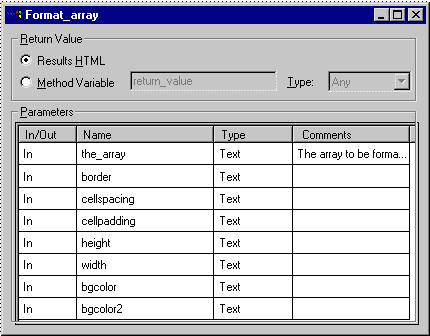
These parameters map to the attributes displayed in the table.taf Results HTML:
The Format_array Results HTML is processed by Tango Server, and the results are displayed in the table.taf Results HTML, which is read by the Web browser when table.taf is executed.
The Format_array Results HTML from array_utils.tcf looks like this:
<@IF expr="len(@@method$bgcolor) and len(@@method$bgcolor2)">
<@ifempty "@@method$border"><@ELSE> border=@@method$border</@IF>
<@ifempty
"@@method$cellspacing"><@ELSE>
cellspacing=@@method$cellspacing</@IF>
<@ifempty
"@@method$cellpadding"><@ELSE>
cellpadding=@@method$cellpadding</@IF>
<@ifempty "@@method$height"><@ELSE> height=@@method$height</@IF>
<@ifempty "@@method$width"><@ELSE> width=@@method$width</@IF>
<@if expr="!(@@method$alternate) and len(@@method$bgcolor)"> bgcolor=@@method$bgcolor</@IF>>
<@ROWS array=@@method$the_array>
<TR ALIGN=center<@IF
expr="@@method$alternate and
((<@currow> % 2) != 0)"> BGCOLOR=@@method$bgcolor<@ELSEIF
expr="@@method$alternate"> BGCOLOR=@@method$bgcolor2</@IF>>
The Tango application file, table.taf, contains an Assign action and Results HTML containing the <@TABLE> custom meta tag
Executing table.taf in your Web browser after the custom meta tag definition file and the object (in this case, a Tango class file) has been properly installed gives you the following result:
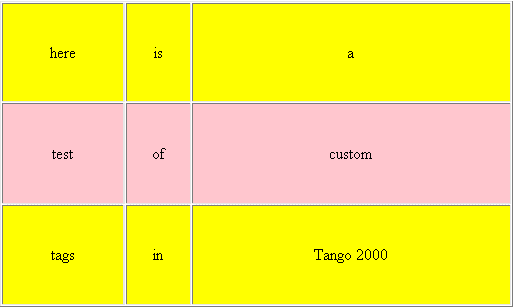
You could modify this example to allow users to specify other table attributes to be passed through to the Tango class file in the <@TABLE> custom meta tag.
Copyright © 1999, Pervasive Software. All rights reserved.